
How to Fix Slow Internet Speed on PC
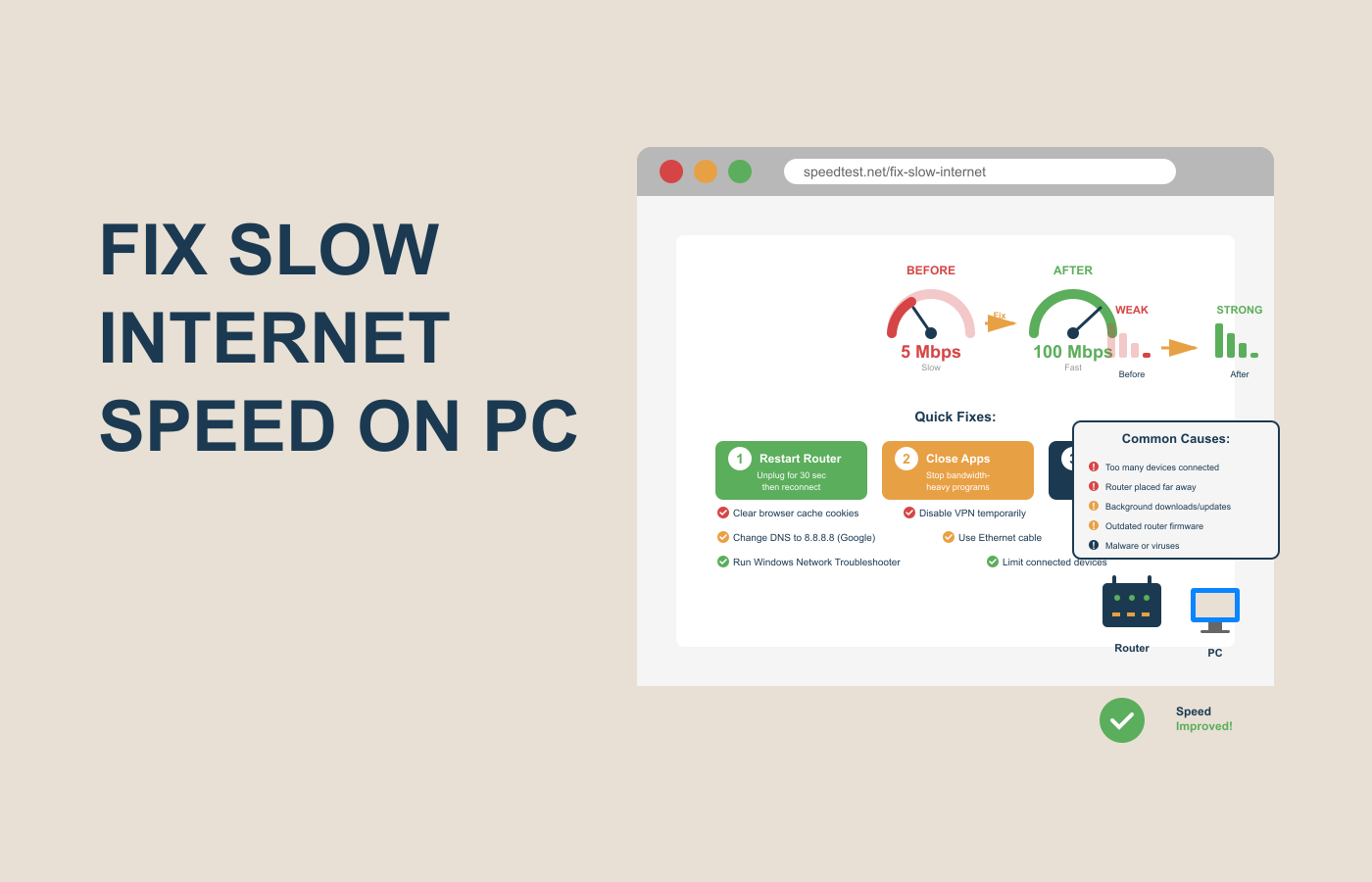
There’s nothing more frustrating than sitting down to stream a movie, join an online meeting, or download a file — only to realize your internet is crawling at a snail’s pace. You refresh the page, restart your Wi-Fi, and even give your router a death stare — but nothing seems to help.
If you’ve ever been stuck watching a loading circle spin endlessly, you’re not alone. Slow internet speed on a PC is one of the most common tech issues people face daily — and it can ruin productivity, gaming sessions, or even basic browsing.
The good news?
You don’t always need a technician or expensive tools to fix it.
In this guide, you’ll learn step-by-step how to fix slow internet speed on your PC, why it happens in the first place, and what simple tweaks can supercharge your connection — even without upgrading your plan.
Why Internet Speed Slows Down on PC
Before you fix the problem, it’s essential to understand what’s causing it. Slow internet speed on your PC can be due to multiple factors — from software bugs to background programs hogging bandwidth.
Here are the most common culprits
1. Too Many Background Apps Running
Apps like Microsoft Teams, Google Drive, or OneDrive often sync files silently in the background, consuming a large chunk of your bandwidth.
Example:
Imagine downloading a Windows update while streaming Netflix — your PC will prioritize the update, leaving less bandwidth for streaming.
2. Outdated Network Drivers
Your PC’s network adapter uses drivers to communicate with your internet hardware. If they’re outdated or corrupted, it can lead to poor performance or frequent disconnections.
3. Weak Wi-Fi Signal or Router Distance
If your PC is far from the router or separated by walls, furniture, or metal appliances, your signal strength drops — leading to slower speeds.
4. Network Congestion
When multiple devices are connected to the same Wi-Fi (smartphones, TVs, IoT devices), your PC gets less share of the available bandwidth — especially during peak hours.
5. Malware or Spyware
Viruses can secretly use your internet connection for malicious activities like sending data or downloading scripts in the background — making your network crawl.
6. Poor DNS Configuration
DNS servers act like the “phone book” of the internet. If your DNS is slow or misconfigured, even simple websites can take forever to load.
7. ISP or Plan Limitations
Sometimes, the issue isn’t with your PC — it’s with your internet service provider (ISP). If you’re on a limited plan or your ISP throttles speeds, you’ll notice slowdowns, especially after high usage.
Now that you know why it happens, let’s move on to how to fix slow internet speed on PC — step by step.
Step-by-Step Guide to Fix Slow Internet Speed on PC
Let’s troubleshoot this issue systematically. Each step below addresses one of the major causes, so you can follow along easily.
Step 1: Check Your Actual Internet Speed
Before jumping into fixes, test your current internet speed.
Go to trusted sites like:
Compare the result with the speed promised in your internet plan.
If your test shows:
- Low download/upload speed on all devices: Problem is with your ISP.
- Low speed only on your PC: The issue lies in your computer setup.
Tip: Run multiple tests at different times (morning, evening, night) — speeds often vary with network traffic.
Step 2: Restart Your Modem and Router
The oldest trick in the book — but still the most effective.
Routers can get overloaded with cached data or temporary network bugs. Restarting them clears out these glitches.
Here’s how to do it properly:
- Turn off your router and modem.
- Wait 30–60 seconds.
- Turn them back on.
- Wait until the internet light stabilizes.
Why it works: This resets your network’s internal cache and re-establishes a fresh connection with your ISP.
Step 3: Disable Background Data-Hungry Apps
Your PC might be secretly downloading or syncing files even when you’re doing nothing.
To check:
- Press Ctrl + Shift + Esc → open Task Manager.
- Go to the Network tab.
- Sort processes by network usage.
You might see apps like OneDrive, Steam, or Windows Update eating up your bandwidth.
Fix:
- Temporarily pause updates or syncs.
- Close unnecessary background applications.
Pro Tip:
In Windows 10/11, go to
Settings → Network & Internet → Data Usage → Background Data
and limit how much bandwidth apps can use in the background.
Step 4: Update Network Drivers
Outdated or corrupted drivers can reduce network performance dramatically.
To update:
- Press Windows + X → Device Manager
- Expand Network Adapters
- Right-click your Wi-Fi or Ethernet adapter → Update Driver
- Choose Search automatically for drivers
If Windows doesn’t find one, visit your PC manufacturer’s official website (like Dell, HP, or Lenovo) and download the latest version manually.
Bonus Tip: Use trusted driver updater tools like Driver Booster or Snappy Driver Installer to automate updates safely.
Step 5: Optimize Your Wi-Fi Signal Strength
If you’re using Wi-Fi, signal strength plays a massive role in your internet speed.
Try these quick improvements:
- Reposition the router: Place it centrally and away from walls or metal objects.
- Switch frequency band: Use 5GHz instead of 2.4GHz for faster speeds (if supported).
- Use fewer devices: Disconnect unused devices temporarily.
- Use Ethernet: For the most stable connection, connect your PC directly to the router with a LAN cable.
Example:
Gamers and video editors often prefer wired Ethernet connections because they provide consistent speed and near-zero latency compared to Wi-Fi.
Step 6: Scan for Malware or Viruses
Malware can drastically slow down your network by consuming bandwidth or blocking connections.
Run a full scan using reliable antivirus software like:
- Windows Defender (built-in)
- Bitdefender
- Malwarebytes
If malware is found, remove it immediately and restart your PC.
Pro Tip: Avoid using free or shady VPNs — they often log your data and slow down your speed.
Step 7: Change DNS Settings
A slow DNS server can delay how fast websites load — even if your internet connection is fast.
To fix this:
- Go to Control Panel → Network and Sharing Center → Change Adapter Settings
- Right-click your Wi-Fi/Ethernet → Properties
- Click Internet Protocol Version 4 (TCP/IPv4) → Properties
- Select Use the following DNS server addresses:
- Preferred DNS: 8.8.8.8
- Alternate DNS: 8.8.4.4
These are Google’s public DNS servers — fast and reliable.
Alternatively, try Cloudflare DNS (1.1.1.1) or OpenDNS (208.67.222.222) for enhanced privacy and speed.
Step 8: Turn Off Windows Auto Updates Temporarily
Windows Update can consume bandwidth heavily in the background.
To pause updates:
- Go to Settings → Windows Update
- Click Pause for 7 days
This gives you breathing space while you troubleshoot the main issue.
Step 9: Reset Network Settings
Sometimes, old or corrupted network configurations in Windows can mess up your internet speed. Resetting them gives you a clean slate.
Here’s how:
- Go to Settings → Network & Internet → Advanced Network Settings
- Click Network Reset
- Hit Reset Now and confirm
After restarting your PC, your Wi-Fi passwords and VPN settings will be removed — so make sure you note them down first.
This process reinstalls network adapters and resets all settings back to default, which often solves hidden connectivity bugs.
Step 10: Disable Metered Connection (Windows 10/11 Users)
If your internet is marked as metered, Windows will limit background data usage — but sometimes, it can also restrict normal connectivity.
To fix:
- Go to Settings → Network & Internet → Wi-Fi
- Select your connected network
- Scroll down and turn off “Set as Metered Connection”
Once done, you’ll notice faster browsing and smoother downloads.
Step 11: Adjust Bandwidth Settings for Windows Updates
By default, Windows reserves a part of your bandwidth for updates and system tasks — even when you’re not downloading anything.
You can free up that reserved bandwidth by tweaking the settings:
- Press Windows + R → type
gpedit.mscand hit Enter - Navigate to:
Computer Configuration → Administrative Templates → Network → QoS Packet Scheduler - Double-click Limit reservable bandwidth
- Select Enabled, and set Bandwidth limit (%) to 0
Click Apply → OK.
This ensures Windows doesn’t hold back any part of your internet for background updates.
Step 12: Clear Cache and Cookies in Your Browser
If your internet is slow only when browsing websites, the issue might be with your browser — not your connection.
Over time, cached files, cookies, and extensions can clutter your browser, causing pages to load slowly.
To fix it:
- Open your browser → Settings → Privacy → Clear browsing data
- Select Cached images and files and Cookies and site data
- Click Clear Data
Bonus Tip: Disable unused extensions (like SEO tools or ad blockers) that run constantly in the background.
Comparison Table: Wired vs Wireless Connection
| Feature | Wired (Ethernet) | Wireless (Wi-Fi) |
|---|---|---|
| Speed Stability | Very stable, consistent | Can fluctuate due to signal |
| Latency (Ping) | Low — great for gaming | Higher latency |
| Security | Harder to intercept | Easier to hack/interfere |
| Mobility | Limited (wired) | Flexible, mobile |
| Setup Difficulty | Simple plug-in | Requires configuration |
Verdict:
If your work relies on stable internet — like gaming, live streaming, or video calls — Ethernet is the best option. Wi-Fi is convenient but prone to signal drops and speed fluctuations.
Pro Tips to Boost Internet Speed on PC
Here are some expert tricks that make a noticeable difference in real-world use:
1. Use a Dedicated DNS Optimizer Tool
Tools like DNS Jumper or NameBench help you find the fastest DNS server for your location — giving you quicker response times when loading sites.
2. Limit Auto-Startup Programs
When your PC starts, multiple apps (like Zoom, Spotify, or Discord) launch automatically and consume bandwidth.
Disable them:
- Press Ctrl + Shift + Esc → Startup tab
- Right-click unwanted apps → Disable
This ensures your internet resources are focused on what you’re using.
3. Use a Good VPN (Optional)
If your ISP throttles certain sites or streaming services, using a premium VPN like NordVPN or ProtonVPN can help bypass these restrictions — often boosting speed.
Avoid free VPNs — they’re slow and risky.
4. Keep Your Router Firmware Updated
Just like your PC, routers also need updates to fix bugs and improve performance.
Check your router’s admin panel (usually at 192.168.1.1) → Firmware Update.
Keeping it updated helps you get better signal stability and protection from speed throttling bugs.
5. Choose the Right Internet Plan
If you frequently stream 4K videos, play online games, or work remotely, go for at least 100 Mbps or higher.
Also, if multiple people in your household are connected at the same time, upgrade to a plan with higher bandwidth or fiber connectivity.
Common Mistakes to Avoid
Even small mistakes can make a big difference in speed. Watch out for these:
- Using outdated browsers — update Chrome, Edge, or Firefox regularly.
- Ignoring router placement — keep it elevated and open, not hidden behind a wall.
- Running multiple antivirus tools — they conflict and slow down the network.
- Not rebooting your PC often — a simple restart can fix hidden network issues.
FAQs About Fixing Slow Internet Speed on PC
1. Why is my PC’s internet slow but my phone’s fast?
Because your PC might have outdated drivers, background apps, or malware affecting bandwidth — while your phone uses a cleaner connection.
2. Can too many devices slow down my Wi-Fi?
Yes! Each connected device shares the same bandwidth. Disconnect unused ones to improve performance instantly.
3. Does clearing browser cache really speed up the internet?
Absolutely. Cached data builds up and slows page loading. Clearing it gives your browser a fresh start.
4. Should I use a Wi-Fi extender or upgrade my router?
If your Wi-Fi signal is weak, a Wi-Fi extender helps in large homes. But if your router is old (over 4 years), it’s better to upgrade.
5. Can using a VPN slow down my internet?
Yes, free or overloaded VPNs can reduce speed. But premium VPNs often optimize traffic and bypass throttling — sometimes improving speed.
Conclusion
Fixing slow internet speed on your PC doesn’t always require technical expertise — just a systematic approach.
Start simple: restart your router, close background apps, and update drivers. If the issue persists, tweak DNS, reset your network, or switch to Ethernet for a reliable connection.
Small changes like these can make your browsing, gaming, and streaming experience dramatically smoother.
Remember — your internet isn’t just about speed, it’s about stability and optimization.
So, take a few minutes to try these fixes today, and watch your PC’s internet transform from sluggish to superfast
Important Links to check:
#InternetSpeed #PCPerformance #WiFiFix #TechGuide #NetworkTroubleshooting

2 Responses