
You type your domain…
The page loads…
And nothing.
A blank white screen stares back. No login. No content. Just emptiness.
Your heart races. “Is my site hacked? Did I lose everything?”
You refresh. Clear cache. Cry a little.
Have you ever felt that terrifying moment when your WordPress website showing white screen turns your online world upside down?
I’ve been there—launch day for a client’s e-commerce store. Thousands in ads ready. Site goes completely white. Client panicking. Me sweating.
15 minutes later → site perfect.
Here’s the reassuring truth in 2025: The infamous WordPress White Screen of Death (WSOD) is almost never permanent—95% fixed in under 20 minutes.
In this beginner-friendly guide, we’ll conquer WSOD caused by plugins, themes, memory limits, PHP errors. By the end, your site will load beautifully again. Let’s banish that blank page—you’ve got this!
Why Fixing WordPress Website Showing White Screen Matters
WSOD isn’t just ugly—it kills traffic, sales, and credibility.
Your visitors bounce. Google ranks you lower. Revenue stops.
In 2025, with WordPress powering 43% of websites, WSOD hits millions yearly from updates, bad plugins, or hosting issues.
Mini story: A blogger I know lost 80% traffic overnight—WSOD after a plugin update. Fixed it → traffic back in hours. Why matters? Your site is your voice, business, passion. Fixing WSOD quickly keeps it alive. Ready to see your content again?
Common Causes of WordPress Website Showing White Screen
Quick overview:
- Plugin conflicts → Most common.
- Theme issues → Broken functions.php.
- PHP memory exhausted → Hosting limits.
- PHP fatal errors → Syntax or version mismatch.
- Corrupted .htaccess → Bad rules.
- Hosting/server problems → File permissions.
Step-by-Step: How to Fix WordPress Website Showing White Screen
We’ll start safe and easy—no data loss.
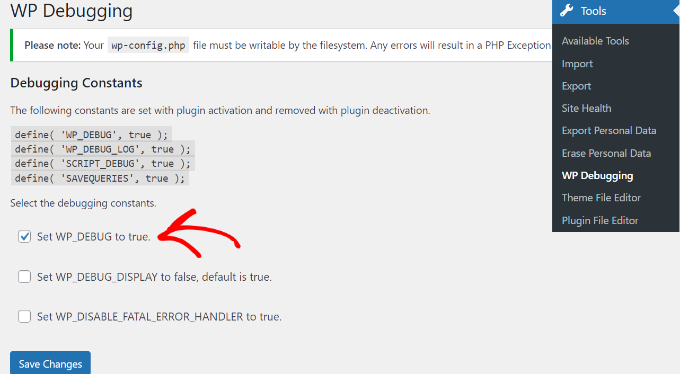
Step 1: Enable Debugging to See Errors (The Game-Changer)

Why? WSOD hides errors—debug reveals the culprit.
How:
- Access files via FTP (FileZilla) or hosting File Manager.
- Open wp-config.php (root folder).
- Find
define('WP_DEBUG', false); - Change to:
   define('WP_DEBUG', true);
   define('WP_DEBUG_LOG', true);
   define('WP_DEBUG_DISPLAY', false);
- Refresh site → errors may show, or check
/wp-content/debug.log
Pro Tip: Backup wp-config.php first.
Step 2: Deactivate All Plugins (The #1 Fix)
Why? Bad/conflicting plugins cause 60% of WSOD.
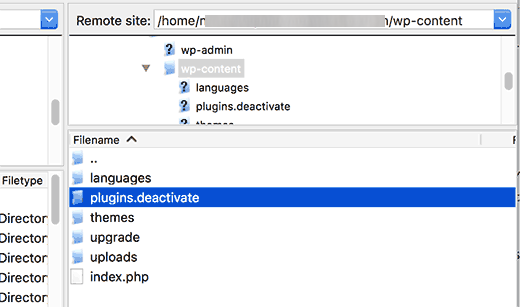
How (via FTP):
- Connect to site.
- Go to
/wp-content/ - Rename plugins folder to plugins_old
- Refresh site → loads? → Plugin issue.
- Rename back → rename individual plugin folders one by one to find guilty.
Via Database (if FTP down):
- phpMyAdmin → wp_options table.
- Find active_plugins → edit → delete value.
Example: Elementor or security plugin updates often trigger.
Step 3: Switch to Default Theme
Why? Custom theme errors blank the site.
How:
- FTP →
/wp-content/themes/ - Rename your theme folder (e.g., astra → astra_old)
- Site defaults to Twenty Twenty-Five → loads? → Theme problem.
Database way: phpMyAdmin → wp_options → template & stylesheet → set to “twentytwentyfive”.
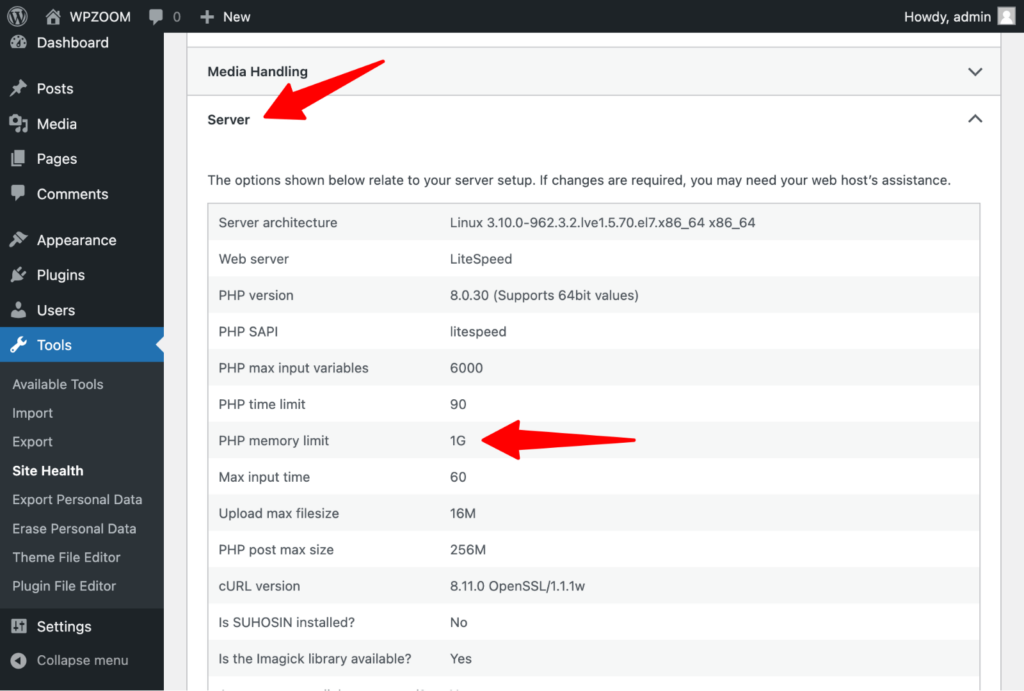
Step 4: Increase PHP Memory Limit
Why? Exhausted memory = white screen.
How:
- Edit wp-config.php → add before “happy blogging”:
define('WP_MEMORY_LIMIT', '256M');
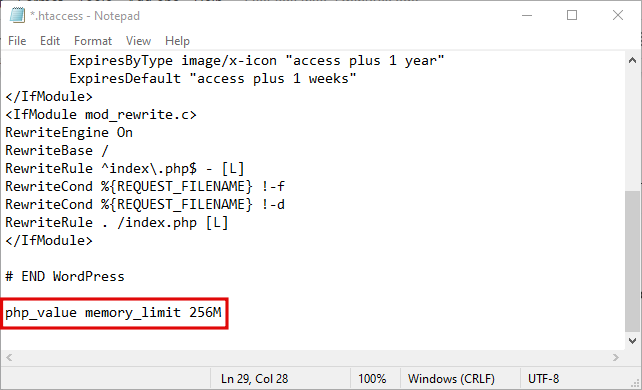
- Or .htaccess:
php_value memory_limit 256M
- Or hosting panel (SiteGround, Bluehost have sliders).
Step 5: Fix .htaccess and Permissions
Why? Corrupted .htaccess or wrong permissions block loading.
How:
- Rename .htaccess to .htaccess_old
- Create new with default WordPress code.
- Permissions: Folders 755, files 644 (via FTP).
Step 6: Check PHP Version and Update WordPress
Why? Incompatible PHP causes fatal errors.
How:
- Hosting panel → PHP version → 8.2 or 8.3
- Update WordPress core, themes, plugins.
Mistake to Avoid: Updating everything at once—do one by one.
Step 7: Recovery Mode and Advanced Tools
Why? WordPress 5.2+ has built-in recovery.
How:
- If email received → click recovery link.
- Use WP-CLI:
wp plugin deactivate --all
Table: Common WSOD Errors & Fixes
| Error (from debug.log) | Quick Fix |
|---|---|
| Plugin conflict | Deactivate plugins |
| Theme functions.php error | Switch theme |
| Memory exhausted | Increase WP_MEMORY_LIMIT |
| PHP fatal error | Check syntax / compatibility |
| Database connection | Verify wp-config.php credentials |
Pro Tips and Expert Insights
From years rescuing sites:
- Enable debug always in staging — catch issues early.
- Use Health Check & Troubleshooting plugin — deactivates plugins for you only.
- Story: Client’s membership site WSOD during launch—bad cache plugin. Disabled via FTP → $10k launch saved.
Outbound: WordPress Codex on WSOD (codex.wordpress.org/Common_WordPress_Errors#The_White_Screen_of_Death).
Internal: See our [How to Fix PHP Memory Limit Errors (Complete Beginner’s Guide)] guide.
FAQs on WordPress Website Showing White Screen
Why only white screen on frontend but admin works?
Plugin or theme issue—deactivate via FTP.
WSOD after update?
Rollback plugin/theme or restore backup.
No debug.log created?
Check file permissions on wp-content.
Site white on mobile only?
Caching plugin mobile detection—clear cache.
How to prevent WSOD?
Update one plugin at a time, use staging.
Conclusion: Your Site Is Back Online
We’ve conquered enabling debug, deactivating plugins/themes, memory limits, .htaccess, permissions, updates.
Key takeaways: Start with debug, isolate plugins/themes, increase resources.
You now have the power to fix WordPress website showing white screen anytime.
Try one step — enable WP_DEBUG right now.
In minutes, errors will reveal themselves—and your site will shine.
No more blank terror.
No more lost traffic.
Just your beautiful WordPress site.
Go open wp-config.php — and watch the white screen vanish.
#WordPressWSOD #WhiteScreenOfDeath #WordPressFix #PluginError #ThemeIssue
