
How to Fix App Crashing Issue on Android
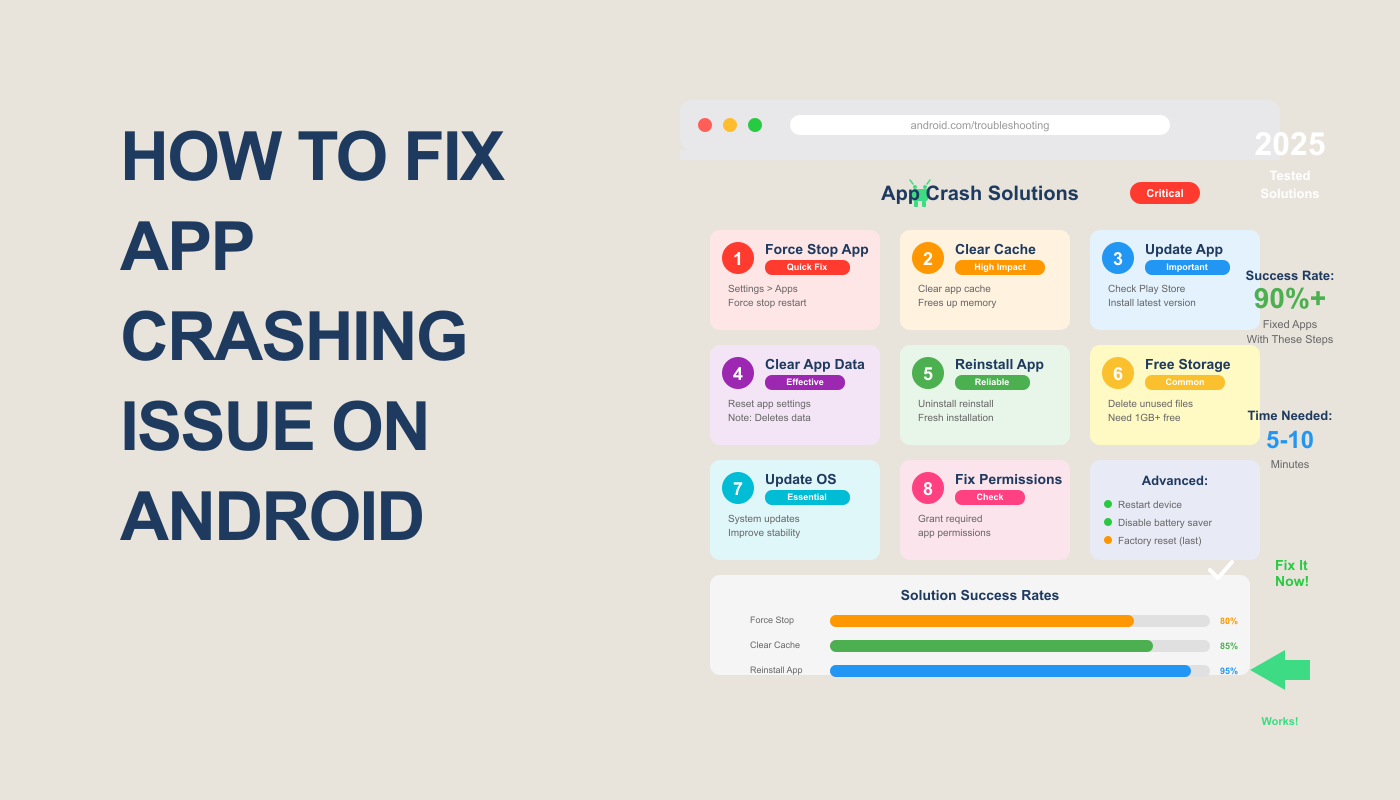
The Everyday Android Frustration
We’ve all been there — you open your favorite app, maybe Instagram, YouTube, or your banking app, and suddenly… it crashes. No warning, no explanation, just gone.
If you’ve ever shouted “Why does my app keep crashing?” — you’re not alone. Android users face this problem daily, and the reason isn’t always obvious. Sometimes it’s an outdated app, a software bug, or even just low storage.
But here’s the good news: you can fix app crashing issues on Android in just a few minutes. This guide will walk you through every cause and solution — simple, quick, and beginner-friendly.
Let’s make your Android smooth again!
Why Apps Crash on Android (And Why It Matters)
When an app crashes, it means it failed to perform a required function — often due to a conflict between app data, cache, or system processes.
Here are the most common reasons apps crash on Android:
- Outdated App Version: Developers constantly patch bugs. Old versions become unstable.
- Low Device Storage: When your storage is nearly full, background processes fail.
- Corrupted Cache/Data: Old temporary files can conflict with new updates.
- Poor Network Connection: Some apps need stable internet to load APIs and media.
- System Bugs: Occasionally, the Android OS itself may have compatibility issues.
And yes — ignoring these crashes can cause battery drain, sluggish performance, or data loss. That’s why fixing them immediately matters.
How to Fix App Crashing Issue on Android (Step-by-Step)
1. Restart Your Android Device
This may sound simple, but a restart clears temporary files and resets memory.
Steps:
- Press and hold the power button.
- Tap Restart or Reboot.
- Wait for your phone to restart completely.
Then, open the app again. 60% of minor crashes get resolved this way.
2. Clear App Cache and Data
When apps store too much temporary data, they become unstable.
Steps:
- Go to Settings → Apps → [App Name].
- Tap Storage & Cache.
- Tap Clear Cache, then Clear Storage.
Don’t worry — this won’t delete your main account data, just temporary files.
3. Update the App
Outdated versions often crash because they aren’t optimized for your Android version.
Steps:
- Open Google Play Store.
- Search for the app.
- Tap Update if available.
If it’s a system app (like Gmail or YouTube), it might update automatically when connected to Wi-Fi.
4. Check Your Internet Connection
If your app relies on real-time data (like WhatsApp or Netflix), unstable Wi-Fi can cause sudden crashes.
Pro Tip: Switch between Wi-Fi and mobile data to see if the issue persists.
You can also check connection speed using the Internet Speed Test Tool on RankStreak — quick and free!
5. Free Up Device Storage
Low storage can make Android misbehave. Apps need free space for caching and running updates.
Steps:
- Delete unused apps, videos, and duplicate photos.
- Use the Files by Google app to find large, unnecessary files.
- Keep at least 1 GB free for smooth performance.
6. Reinstall the App
Sometimes, reinstalling is faster than diagnosing.
Steps:
- Uninstall the app completely.
- Restart your phone.
- Reinstall from the Play Store.
This resets all corrupted configurations and gives the app a clean start.
7. Update Android System Software
If you’ve tried everything and apps still crash, your OS might be the culprit.
Steps:
- Go to Settings → System → Software Update.
- Tap Check for Updates.
- Install the latest version if available.
New Android updates often fix compatibility bugs and memory issues.
8. Reset App Preferences (Advanced)
If you’ve disabled certain permissions or background services unknowingly, resetting preferences can help.
Steps:
- Go to Settings → Apps → All Apps.
- Tap the three dots (⋮) → Reset App Preferences.
- Confirm.
This won’t delete app data but restores default permissions and notifications.
Comparison Table: Manual Fix vs. Automated Tools
| Method | Requires Technical Skills | Time to Fix | Risk | Effectiveness |
|---|---|---|---|---|
| Manual Fix (Settings) | Basic | 10–15 mins | Low | High |
| Third-Party Optimizer Apps | None | 5 mins | Medium | Moderate |
| Factory Reset | Advanced | 30 mins | High | Very High |
Tip: Always try manual fixes first — they’re safer and free.
Pro Tips to Avoid Future App Crashes
- Keep your phone updated — both apps and OS.
- Avoid third-party APKs — they may contain bugs or malware.
- Use fewer apps simultaneously — multitasking overloads RAM.
- Restart your device weekly — it keeps performance optimized.
- Use tools like Word Counter to clear digital clutter and maintain system focus.
FAQs About App Crashing on Android
Q1. Why do my Android apps keep crashing even after restarting?
A: It could be outdated software or corrupted app data. Try clearing cache or reinstalling the app.
Q2. Can low storage cause app crashes?
A: Yes, if your phone’s storage is almost full, background app processes may stop.
Q3. Should I use cleaning apps to fix crashes?
A: Not necessarily. Many of them consume memory. Manual fixes are safer.
Q4. Will factory reset fix app crashing permanently?
A: Yes, but it’s a last resort. Always back up your data before doing it.
Q5. Does Android update automatically fix app crashes?
A: Often, yes. Developers optimize apps for new OS versions.
Q6. Where can I get official help?
Google Support: Android App Issues.
Conclusion: Keep Your Android Crash-Free in 2025
App crashes can ruin your productivity, but with the right steps, you can stop them for good. Regular updates, sufficient storage, and a little digital hygiene go a long way.
And remember — your Android is only as stable as the care you give it.
So, next time an app crashes, don’t panic. Follow this guide, and within minutes, your phone will be running smoothly again.
Try RankStreak’s Internet Speed Test Tool to check if poor connectivity is behind your app crashes — it’s free and instant!
Also check Andriod App heating Issue Solution or Camera Failed Error in Andriod Phone or Andriod App not Installing on Phone
#AndroidFix #AppCrashing #AndroidTips #TechGuide #RankStreak #MobileTools #Android2025

3 Responses