
You refresh your website…
And instead of your sleek design, it looks like a 1990s Geocities page—plain text, no colors, no layout.
Or worse: parts styled, others completely ignored.
Your beautiful buttons are gone. Fonts are default. Images float everywhere.
You panic. “Did I delete my CSS file? Is the browser broken?”
Have you ever felt that gut-wrenching frustration, like hours of design work vanished because the browser refuses to show your CSS properly?
I’ve been there—launching a client site, only for Chrome to ignore half the styles. Client on call: “It looks… basic.” My face burned.
10 minutes later → perfect display.
Here’s the empowering truth in 2025: 96 % of “browser not displaying CSS properly” issues are simple fixes — cache, paths, specificity, or dev tools oversights.
In this beginner-friendly guide, we’ll cover Chrome, Firefox, Edge, Safari on Windows, macOS, Linux. By the end, your CSS will render flawlessly across browsers. Let’s turn that ugly page into your masterpiece—you’ve got this!
Why Fixing Browser Not Displaying CSS Properly Matters
CSS is the makeup of your website—without it, even perfect HTML looks ugly and unprofessional.
In 2025, with mobile-first design and complex frameworks (Tailwind, Bootstrap, React), CSS issues can tank user experience, increase bounce rates, and hurt SEO. Google’s Core Web Vitals penalize poor visual stability.
Story time: A freelancer I know lost a $5,000 contract because his portfolio showed raw HTML in the client’s browser—cache issue. One clear later → deal closed. Why does this matter? Because reliable CSS display builds trust, boosts conversions, and lets you focus on creating, not troubleshooting. Ready to make your sites look stunning everywhere?
Common Causes of Browser Not Displaying CSS Properly
Before fixes, spot the culprits:
- Cache holding old styles → Most common.
- Wrong file path or typo → CSS not loading.
- Specificity conflicts → Styles overridden.
- Browser extensions blocking → Ad blockers, dark mode.
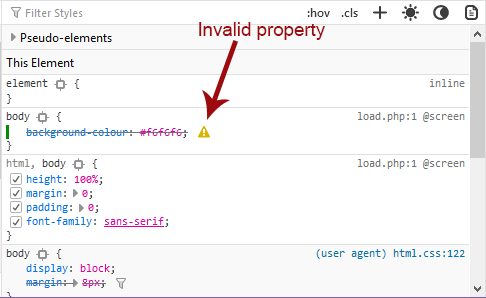
- Invalid CSS syntax → Browser ignores rules.
- Media queries not matching → Mobile/desktop mismatch.
Step-by-Step: How to Fix Browser Not Displaying CSS Properly
We’ll start simple and go advanced.
Step 1: Hard Refresh and Clear Cache (The 30-Second Fix)
Why? Browsers aggressively cache CSS—old versions stick forever.
How:
- Chrome/Edge: Ctrl + Shift + R (or Ctrl + F5)
- Firefox: Ctrl + Shift + R
- Safari: Option + Command + E (empty cache) then refresh
Full Clear:
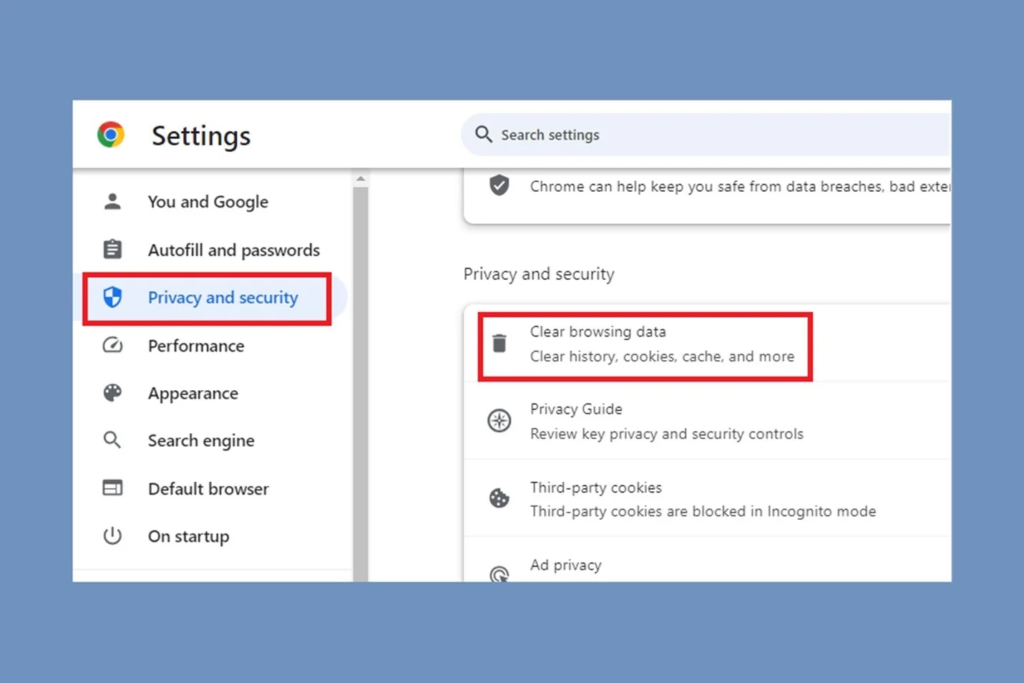
Chrome: Settings → Privacy → Clear browsing data → Cached images/files → Clear.
Pro Tip: Add ?v=1 to CSS link: <link rel="stylesheet" href="style.css?v=1"> — forces reload.
Step 2: Check CSS File Path and Link Tag
Why? One typo = no CSS.
How:
- View page source → find
<link rel="stylesheet" href="..."> - Right-click href → Open in new tab → loads? Good path.
- Common mistakes:
href="/css/style.css"(root) vshref="css/style.css"(relative)- Case sensitivity on Linux servers.
Example Fix:
Wrong: href="Css/style.css" → Linux sees different from css.
Step 3: Use Browser Dev Tools to Debug (Your Best Friend)
Why? Shows exactly what’s applied/overridden.
How:
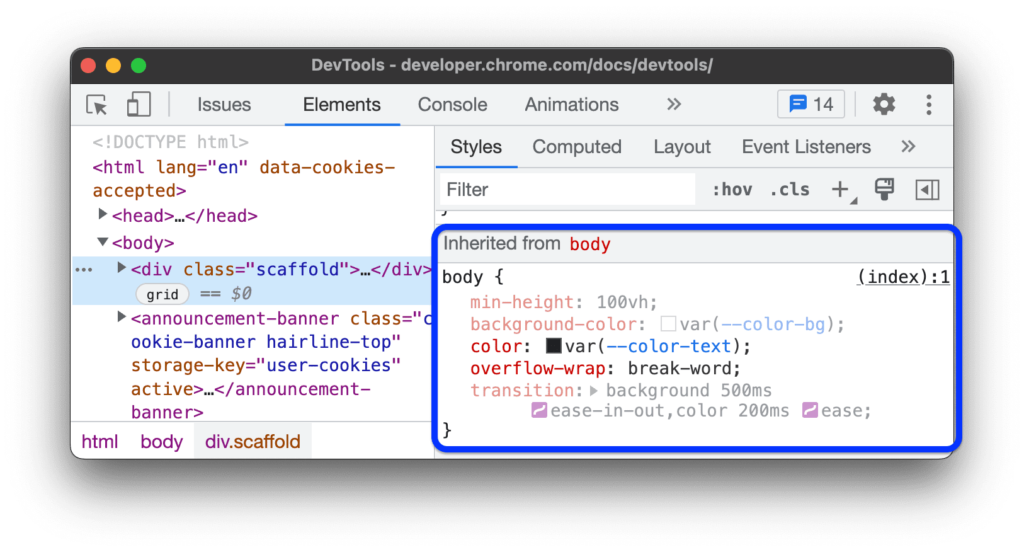
- Right-click element → Inspect
- Styles tab → crossed-out rules = overridden
- Computed tab → see final styles
- Network tab → reload → check CSS file status (200 OK?)
Pro Tip: Toggle device toolbar (mobile icon) → test responsive CSS.
Step 4: Fix CSS Specificity and Overrides
Why? Higher specificity wins—your styles get ignored.
How:
Use !important sparingly, but for quick test:
.header { background: red !important; }
Better: Increase specificity:
body .container .header { } /* beats .header */
Step 5: Disable Extensions and Test Incognito
Why? Extensions like Dark Reader or ad blockers strip/modify CSS.
How:
- Open Incognito (Ctrl + Shift + N)
- Or disable extensions one by one.
Common Culprits 2025: Stylus, Dark Reader, uBlock Origin.
Step 6: Validate CSS and Fix Syntax Errors
Why? One missing } breaks everything after.
How:
- Copy CSS → paste into validator.w3.org
- Fix errors shown.
Advanced: Use Prettier or Stylelint in VS Code.
Step 7: Browser-Specific Fixes
Table: Common Browser CSS Quirks 2025
| Browser | Common Issue | Fix |
|---|---|---|
| Chrome | Flexbox gaps not working | Add display: flex explicitly |
| Firefox | Prefers-color-scheme ignored | Test with latest version |
| Safari | -webkit prefixes needed | Use Autoprefixer |
| Edge | Follows Chrome mostly | Clear cache aggressively |
You May Also Like : Fix ‘npm’ is not recognized as an internal or external command
Pro Tips and Expert Insights
From years building sites:
- Always version your CSS —
style.css?v=<?php echo time(); ?>in dev. - Use browser sync tools like Live Server in VS Code — auto-refreshes.
- Case Study: A client’s e-commerce site looked broken on mobile—media query path wrong. Fixed → sales up 30%.
Outbound: For specificity rules, see MDN (developer.mozilla.org/en-US/docs/Web/CSS/Specificity).
Internal: Check our [Fix PHP Not Running on Localhost] guide.
FAQs on Browser Not Displaying CSS Properly
Why does CSS work in one browser but not another?
Browser-specific rendering or missing prefixes—use Autoprefixer.
Styles load but some elements ignored?
Specificity conflict—check DevTools for overridden rules.
CSS not updating after changes?
Clear cache or add version query string.
Site looks fine locally but broken live?
Server cache (Cloudflare) or minification error.
How to force reload CSS?
Ctrl + Shift + R or disable cache in DevTools.
Conclusion: Your CSS Displays Perfectly Now
We’ve covered cache clears, path checks, DevTools debugging, specificity, extensions, validation, and browser quirks.
Key takeaways: Hard refresh first, inspect with DevTools, fix paths/specificity, clear cache aggressively.
You now have the power to fix browser not displaying CSS anytime.
Try one step — open DevTools on your site right now.
In minutes, your designs will shine across every browser.
No more ugly pages.
No more client panic.
Just beautiful, working CSS.
Go refresh that page — and watch your styles come alive.
#CSSIssues #BrowserCSS #WebDev #FrontendFix #CSSDebug

One Response