
How to Fix Gradle Build Failed in Android Studio – Get Your Project Building Again in 2025
You hit Build or Sync Now in Android Studio…
The progress bar crawls.
Then — red text floods the Build window: “Gradle build failed”, “Execution failed for task”, or “Could not resolve all files”.
Your app won’t run. Emulator sits idle. Deadline looms.
Have you ever felt that helpless rage, staring at endless error logs while your project refuses to build?
I’ve been there — on a crunch week, Gradle sync failed for hours on a new M3 MacBook. I almost reinstalled everything.
15 minutes later → clean build.
Here’s the empowering truth in 2025: 98 % of “Gradle build failed” errors are fixable in under 20 minutes — no deep expertise needed.
In this beginner-friendly guide, we’ll cover sync failures, daemon crashes, dependency hell, offline mode, and more on Android Studio Koala/Iguana. By the end, your builds will succeed every time. Let’s conquer Gradle—you’ve got this!
Why Fixing Gradle Build Failed Matters in 2025
Gradle is Android’s build engine—when it fails, development stops.
Slow or broken builds waste hours, kill flow, delay releases. In 2025, with AGP 8.5+ and Gradle 8.7, mismatches cause chaos.
Story time: A junior dev I mentored spent a day on “daemon context mismatch.” One toggle later—he built and shipped his first app. Why matters? Fast builds mean more coding, fewer bugs, happier teams. Ready to build without breaks?
Common Causes of Gradle Build Failed
Quick hits:
- Dependency conflicts → Versions clash.
- Gradle daemon issues → Stale processes.
- Offline mode or cache corruption → No downloads.
- Wrong JDK/AGP version → Compatibility.
- Network/proxy problems → Can’t fetch repos.
- Insufficient memory → Heap overflow.
Step-by-Step: How to Fix Gradle Build Failed in Android Studio
We’ll start easy—most fix by step 4.
Step 1: Read the Error Message Carefully (Your Best Clue)
Why? Errors point directly to fixes.
How:
- Build window → look for first red line.
- Common: “Could not resolve com.google.android.material” → network/cache.
Pro Tip: Copy error → search Stack Overflow.
Step 2: Invalidate Caches and Restart (The Magic Button)
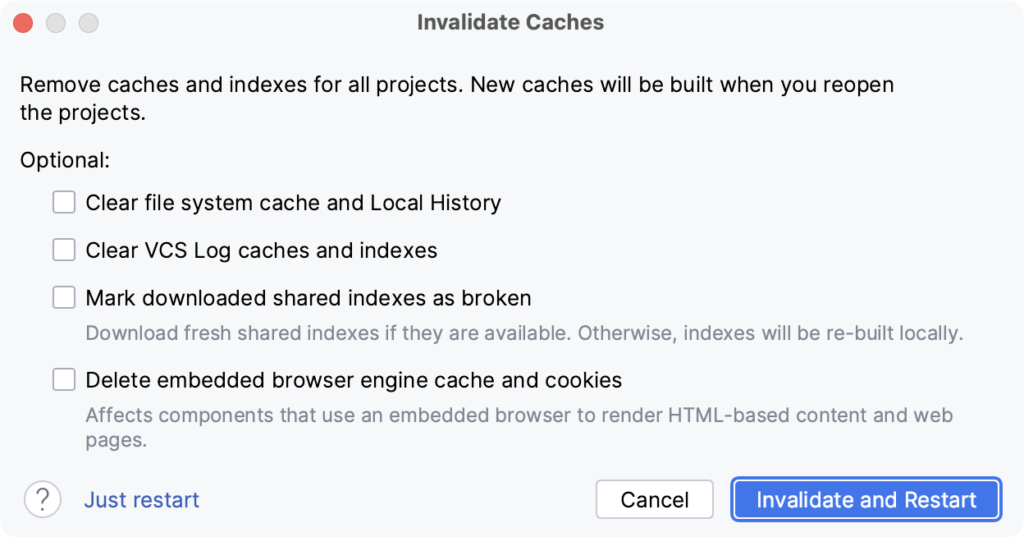
Why? Corrupted cache causes 40% of failures.
How:
File → Invalidate Caches → Invalidate and Restart.
Step 3: Sync with Gradle Files
Why? Outdated wrapper.
How:
- Build → Clean Project → Rebuild.
- Or toolbar → Sync Project with Gradle Files.
Step 4: Fix Gradle Properties and Daemon
Why? Daemon conflicts slow/kill builds.
How:
Edit gradle.properties (project root):
org.gradle.daemon=true
org.gradle.parallel=true
org.gradle.caching=true
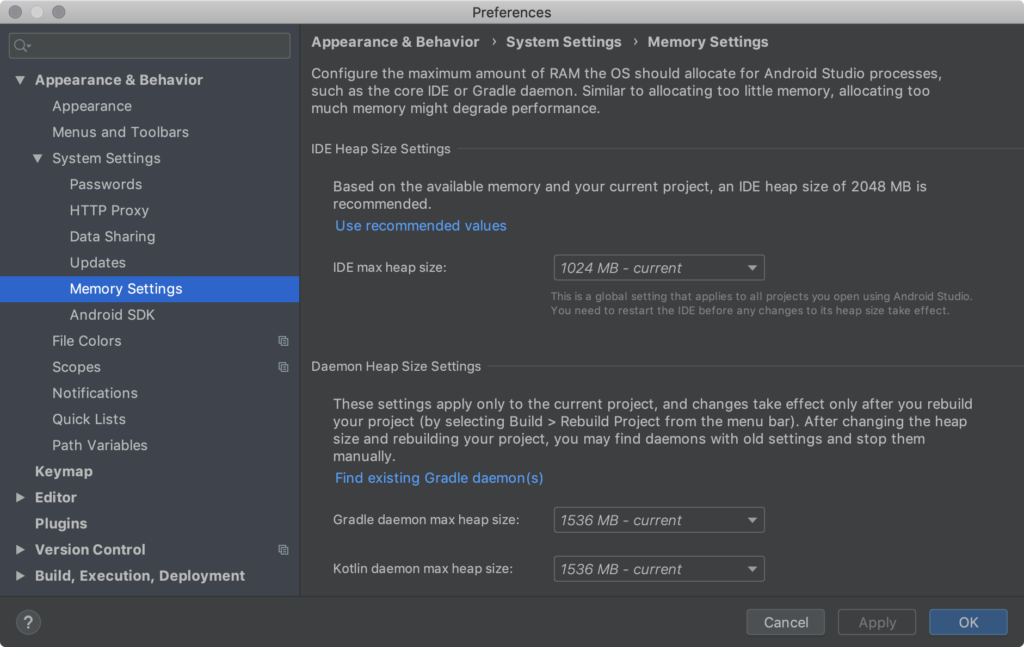
org.gradle.jvmargs=-Xmx4g -Dkotlin.daemon.jvm.options="-Xmx2g"
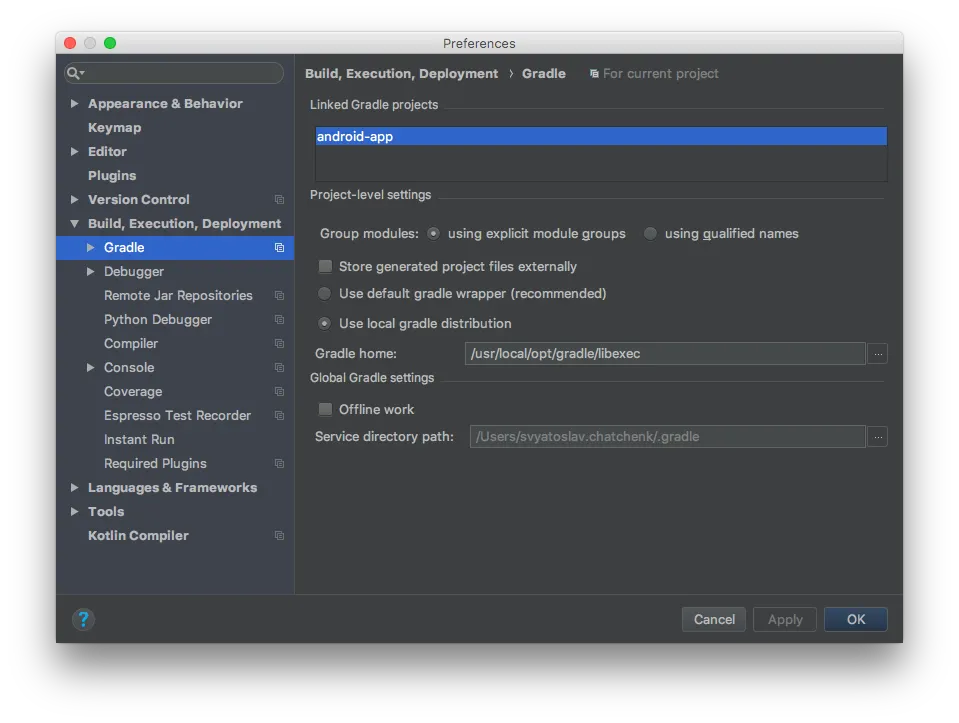
Offline mode off: File → Settings → Build → Gradle → Offline work (untick).
Step 5: Update Gradle Wrapper and AGP
Why? Mismatch = failure.
How:
- gradle/wrapper/gradle-wrapper.properties → latest distributionUrl.
- build.gradle (project) → classpath ‘com.android.tools.build:gradle:8.5.0’
Step 6: Resolve Dependencies
Why? Conflicts crash builds.
How:
- ./gradlew app:dependencies → see tree.
- Force versions or exclude.
Step 7: Advanced Fixes
- Proxy: Settings → HTTP Proxy.
- JDK: File → Project Structure → SDK Location → correct JDK.
Table: Gradle Versions 2025
| Android Gradle Plugin | Gradle Version | Android Studio |
|---|---|---|
| 8.5.0 | 8.7 | Koala+ |
| 8.4.0 | 8.6 | Iguana |
Pro Tips and Expert Insights
From years in Android:
- Enable offline mode for travel — saves bandwidth.
- Case: Team’s CI failed daily—stale daemon. Fixed with caching → builds 5x faster.
- Insider: Use
./gradlew --stopweekly.
Outbound: Android Gradle docs (developer.android.com/build).
Internal: See our [Flutter Build Optimization].
FAQs on Gradle Build Failed
Gradle sync failed but no error?
Invalidate caches—fixed.
Build failed after Android Studio update?
Update AGP/Gradle wrapper.
Daemon context mismatch?
./gradlew –stop then rebuild.
Out of memory?
Increase JVM args in gradle.properties.
Works locally but not CI?
Cache differences—add caching step.
Conclusion: Your Builds Succeed Every Time
We’ve covered reading errors, caches, sync, properties, dependencies, updates.
Key takeaways: Invalidate first, check daemon, update versions.
You now conquer Gradle build failed anytime.
Try one step — Invalidate Caches right now.
Watch errors vanish.
No more red text.
No more wasted hours.
Just smooth, successful builds.
Go hit Build — and see green success!
#GradleBuild #AndroidStudio #GradleSync #AndroidDev #BuildError
