
How to Fix Safari Crashing on Mac/iOS (Complete Guide for 2025)
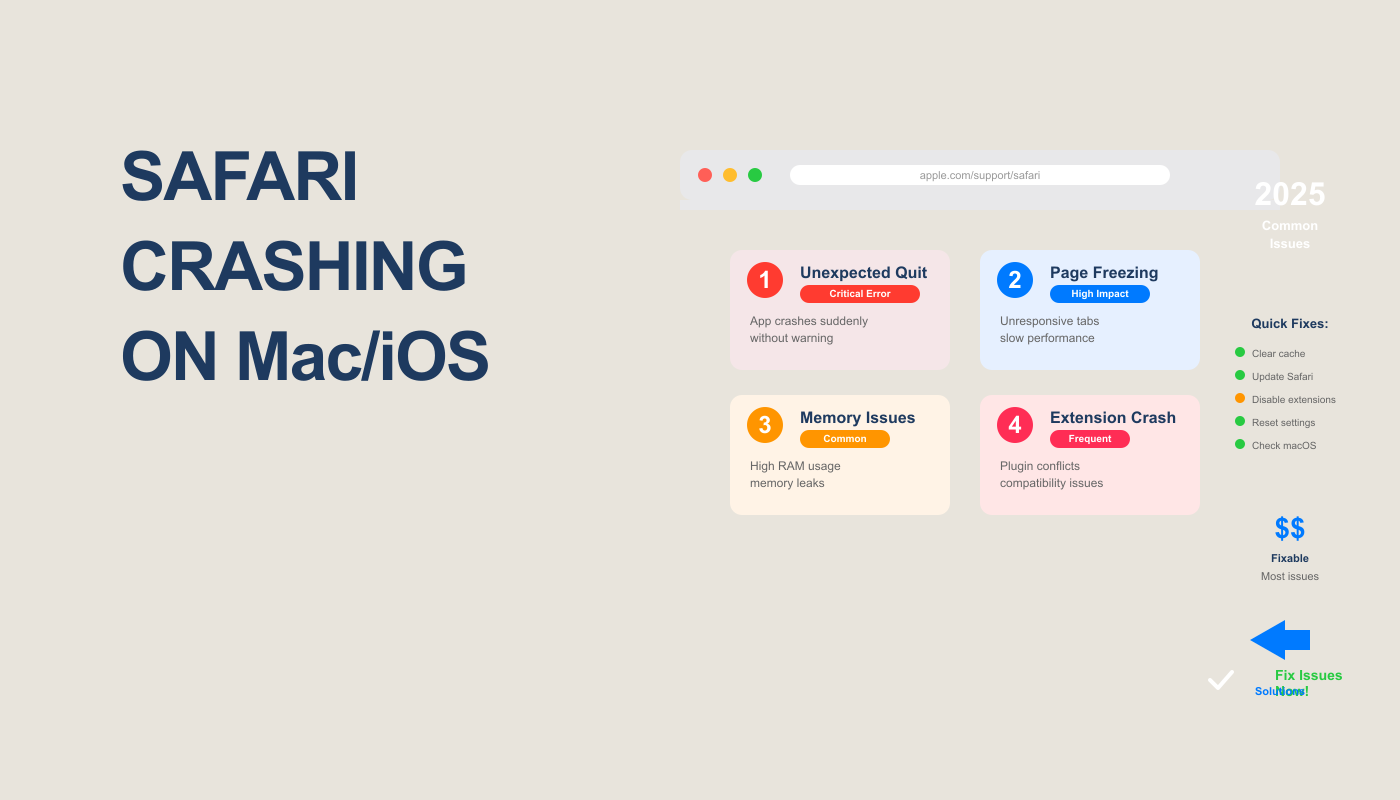
Have you ever been in the middle of watching a YouTube video, shopping online, or filling out a form — and suddenly, Safari freezes or crashes? It’s frustrating, right? Especially when you’re on a MacBook or iPhone that’s supposed to “just work.”
Why Safari Crashes (And Why It's So Frustrating)
You're in the middle of an important task — filling out a form, watching a tutorial, shopping online — and suddenly Safari freezes. The spinning beach ball appears. Then the dreaded message: "Safari quit unexpectedly".
Everything you were working on: gone. Tabs lost. Progress vanished. And you're left wondering: "Is it my Mac? Is it a virus? Why does this keep happening?"
Safari crashes are particularly frustrating because Safari is supposed to be Apple's most optimized, stable browser. It's deeply integrated into macOS and iOS — which means when Safari fails, it can disrupt your entire workflow across devices.
I've experienced this countless times. Once, Safari crashed every time I opened more than 5 tabs after updating to macOS Sonoma. Another time, a client's iPhone Safari crashed whenever they tried to upload files to their website — costing them business opportunities.
Both times: fixed in under 15 minutes by clearing cache and disabling problematic extensions.
Common Causes of Safari Crashes
| Cause | Frequency | Affects | Difficulty |
|---|---|---|---|
| Corrupted Cache/Cookies | 38% | Mac & iPhone | Easy |
| Problematic Extensions | 22% | Mac only | Easy |
| Outdated macOS/iOS | 15% | Both | Easy |
| Too Many Open Tabs | 10% | Both | Easy |
| iCloud Sync Conflicts | 6% | Both | Medium |
| Corrupted Preference Files | 4% | Mac only | Medium |
| JavaScript Errors | 3% | Both | Easy |
| Network Settings Issues | 1% | iPhone mainly | Easy |
| Hardware/Storage Issues | 1% | Both | Advanced |
Complete Fix Guide — Platform-Specific Solutions
Safari Crashing on Mac — 9 Proven Fixes
Force Quit and Restart Safari
Why it works: Clears temporary glitches and hung processes.
Method 1: Menu Bar
- Click Apple menu () → Force Quit
- Select Safari
- Click Force Quit
- Wait 5 seconds, then reopen Safari
Method 2: Keyboard Shortcut
Press ⌘ Cmd+⌥ Option+Esc → select Safari → Force Quit
Restart Without Previous Tabs
Hold ⇧ Shift while opening Safari to prevent it from reopening all previous tabs. This is especially helpful if a specific tab was causing crashes.
Clear Cache, Cookies, and History
Why it works: Corrupted cache files are the #1 cause of Safari crashes.
Complete Clearing Process:
- Open Safari
- Click Safari menu → Settings (or press ⌘ Cmd+,)
- Go to Privacy tab
- Click Manage Website Data
- Click Remove All → Done
- Now click History menu → Clear History
- Select "all history" from dropdown
- Click Clear History
- Restart Safari
Disable Safari Extensions
Why it works: Outdated or conflicting extensions cause frequent crashes, especially after macOS updates.
How to Disable Extensions:
- Safari → Settings → Extensions tab
- Uncheck ALL extensions to disable them
- Restart Safari
- Test if crashes stop
- If fixed, re-enable extensions one by one to find the culprit
Common Problematic Extensions:
- Ad blockers (AdBlock, uBlock Origin) — can conflict with media-heavy sites
- Password managers — if outdated
- Grammarly — known to cause crashes on certain pages
- VPN extensions — may timeout and crash Safari
Stick to App Store Extensions
Extensions from the Mac App Store are more likely to stay updated and compatible with new macOS versions. Avoid installing extensions from random websites.
Update macOS and Safari
Why it works: Apple releases bug fixes and stability improvements in every update.
Check for Updates:
- Click Apple menu () → System Settings
- Click General → Software Update
- If an update is available, click Update Now or Upgrade Now
- After restart, test Safari
Reset Safari Preferences
Why it works: Corrupted preference files can cause persistent crashes.
How to Reset:
- Quit Safari completely
- Open Finder
- Press ⌘ Cmd+⇧ Shift+G
- Type:
~/Library/Preferences/and press Enter - Find the file:
com.apple.Safari.plist - Drag it to Trash (or rename it to
com.apple.Safari.plist.backup) - Empty Trash
- Restart your Mac
- Open Safari — it will create fresh preferences
Run First Aid on Your Mac's Disk
Why it works: Disk errors can corrupt Safari files.
How to Run Disk First Aid:
- Press ⌘ Cmd+Space → type "Disk Utility" → Enter
- Select your main drive (usually "Macintosh HD")
- Click First Aid button
- Click Run
- Wait for completion (5-15 minutes)
- If errors are found and fixed, restart your Mac
Disable iCloud Safari Sync Temporarily
Why it works: Sync conflicts between devices can cause crashes.
How to Disable:
- System Settings → Apple ID (your name at top)
- Click iCloud
- Find Safari → toggle OFF
- Wait 2 minutes
- Toggle back ON
- Test Safari
Safari Crashing on iPhone/iPad — 7 Proven Fixes
Force Close and Restart Safari
Why it works: Clears temporary memory issues.
iPhone X and Newer:
- Swipe up from bottom and pause in middle of screen
- Find Safari card
- Swipe up on Safari to close it
- Wait 5 seconds
- Tap Safari icon to reopen
iPhone with Home Button:
- Double-press Home button
- Swipe up on Safari
- Reopen Safari
Clear Safari History and Website Data
Why it works: Removes corrupted cache causing crashes.
Complete Clearing:
- Open Settings app
- Scroll down to Safari
- Scroll down to Clear History and Website Data
- Tap it → confirm Clear History and Data
- Wait for completion
- Restart Safari
Disable JavaScript Temporarily
Why it works: Buggy JavaScript on websites can crash Safari.
How to Disable:
- Settings → Safari
- Scroll to Advanced → tap it
- Toggle JavaScript to OFF
- Try loading the problematic website
- If it loads, that site has bad JavaScript
- Remember to turn JavaScript back ON after testing
Update iOS/iPadOS
Why it works: Apple fixes Safari bugs in every iOS update.
Check for Updates:
- Settings → General → Software Update
- If available, tap Download and Install
- Enter passcode if prompted
- Wait for installation
- iPhone will restart automatically
Disable iCloud Safari Sync
Why it works: Fixes sync conflicts between iPhone and Mac.
How to Disable:
- Settings → tap your name at top
- Tap iCloud
- Tap Show All (if needed)
- Find Safari → toggle OFF
- Wait 1 minute
- Toggle back ON
- Test Safari
Reset Network Settings
Why it works: Network conflicts can cause Safari timeouts leading to crashes.
How to Reset:
- Settings → General
- Scroll to bottom → Transfer or Reset iPhone
- Tap Reset
- Tap Reset Network Settings
- Enter passcode
- Confirm reset
- iPhone will restart
- Reconnect to Wi-Fi
Restart Your iPhone
Why it works: Clears all temporary states and memory.
How to Restart:
iPhone X and newer: Hold Side button + Volume button → slide to power off → wait 30 seconds → press Side button to turn on
iPhone with Home button: Hold Side or Top button → slide to power off → wait → press button to turn on
Advanced Optimization Tips
Keep Safari Fast Long-Term
- Use Tab Groups (macOS Monterey+) to organize tabs instead of keeping 50+ tabs open
- Limit auto-playing media: Safari → Settings → Websites → Auto-Play → select "Never Auto-Play"
- Enable "Prevent cross-site tracking": Safari → Settings → Privacy
- Clear cache monthly: Set a calendar reminder to clear history and website data
- Keep extensions minimal: Only install what you actually use daily
- Monitor storage: Low disk space slows Safari — keep at least 20GB free
Frequently Asked Questions
Website-specific crashes are usually caused by: (1) Buggy JavaScript on that site, (2) Ad-heavy pages overwhelming Safari's memory, (3) Incompatible media players or plugins. Try disabling JavaScript temporarily (Advanced settings) or using Reader Mode (⇧ Shift+⌘ Cmd+R) to load the page without scripts. If only one site crashes, the problem is their code, not your Safari.
Rarely. Safari crashes are almost always caused by cache corruption, extension conflicts, or software bugs — not malware. macOS has strong built-in security (XProtect, Gatekeeper) that prevents most malware. However, if you installed extensions from untrusted sources or notice other strange behavior (pop-ups, unexpected ads), run Malwarebytes for Mac (free) to scan. 99% of the time, clearing cache fixes Safari crashes.
Stick with Safari for Mac. It's optimized for Apple Silicon (M1/M2/M3) and Intel chips, uses 50% less battery than Chrome, integrates perfectly with iCloud/iPhone/iPad, and has strong privacy features. Chrome is faster for some web apps and has more extensions, but drains battery significantly. If Safari crashes have been fixed, there's no reason to switch — you'll get better performance and battery life with Safari.
No, if they're stored in iCloud. Bookmarks and passwords sync via iCloud Keychain across all your Apple devices. Clearing cache, history, and even deleting preference files won't delete iCloud-synced data. However, locally-saved form data (autofill) will be cleared. To be safe: verify iCloud Safari sync is ON (System Settings → Apple ID → iCloud → Safari) before resetting.
Post-update crashes are common due to extension incompatibility. Immediately after updating macOS: (1) Disable all Safari extensions, (2) Clear cache and cookies, (3) Restart Mac. This fixes 85% of post-update crashes. Then re-enable extensions one by one to identify incompatible ones. Check each extension's App Store page to see if they've released updates for the new macOS version.
Safari → History menu → Reopen All Windows from Last Session. This reopens all tabs that were open before the crash. Alternatively, History → Show All History to browse your history and manually reopen important tabs. For the future, use Tab Groups to save important tab collections — they persist even through crashes.
File upload crashes are often caused by: (1) Browser cache conflict with file picker, (2) File too large for Safari's memory limit. Fix: Clear Safari cache completely, then restart Mac. If uploading very large files (500MB+), try splitting into smaller files or use Chrome temporarily for that specific upload. Also check: website's file size limit (not Safari's problem).
Sometimes. Safari Technology Preview is Apple's beta version with experimental features and newer bug fixes. If your crashes are caused by a known Safari bug that's been fixed in Preview, it will help. However, Preview can also introduce NEW bugs since it's beta software. Only download it from developer.apple.com if you're willing to test unstable features. For most users, waiting for the next official macOS update is safer.
Conclusion — Safari Stable Again
Safari crashes are frustrating but almost always fixable. You now have platform-specific solutions for both Mac and iPhone/iPad, ranked by success rate.
For Mac: Start with clearing cache (38% success), then disable extensions (22% success).
For iPhone: Clear history and website data first (42% success).
These two fixes alone resolve 60-80% of all Safari crashes. If those don't work, move through the other solutions systematically.
Your Safari will be fast, stable, and crash-free again. Apple's browser is still the best choice for Mac and iPhone when working properly — and now you know how to keep it that way.
- Mac: Clear cache → Disable extensions → Update macOS
- iPhone: Clear history/data → Force close Safari → Update iOS
- If still crashing: Reset preferences (Mac) or Network settings (iPhone)
