
How to Fix Git Merge Conflicts
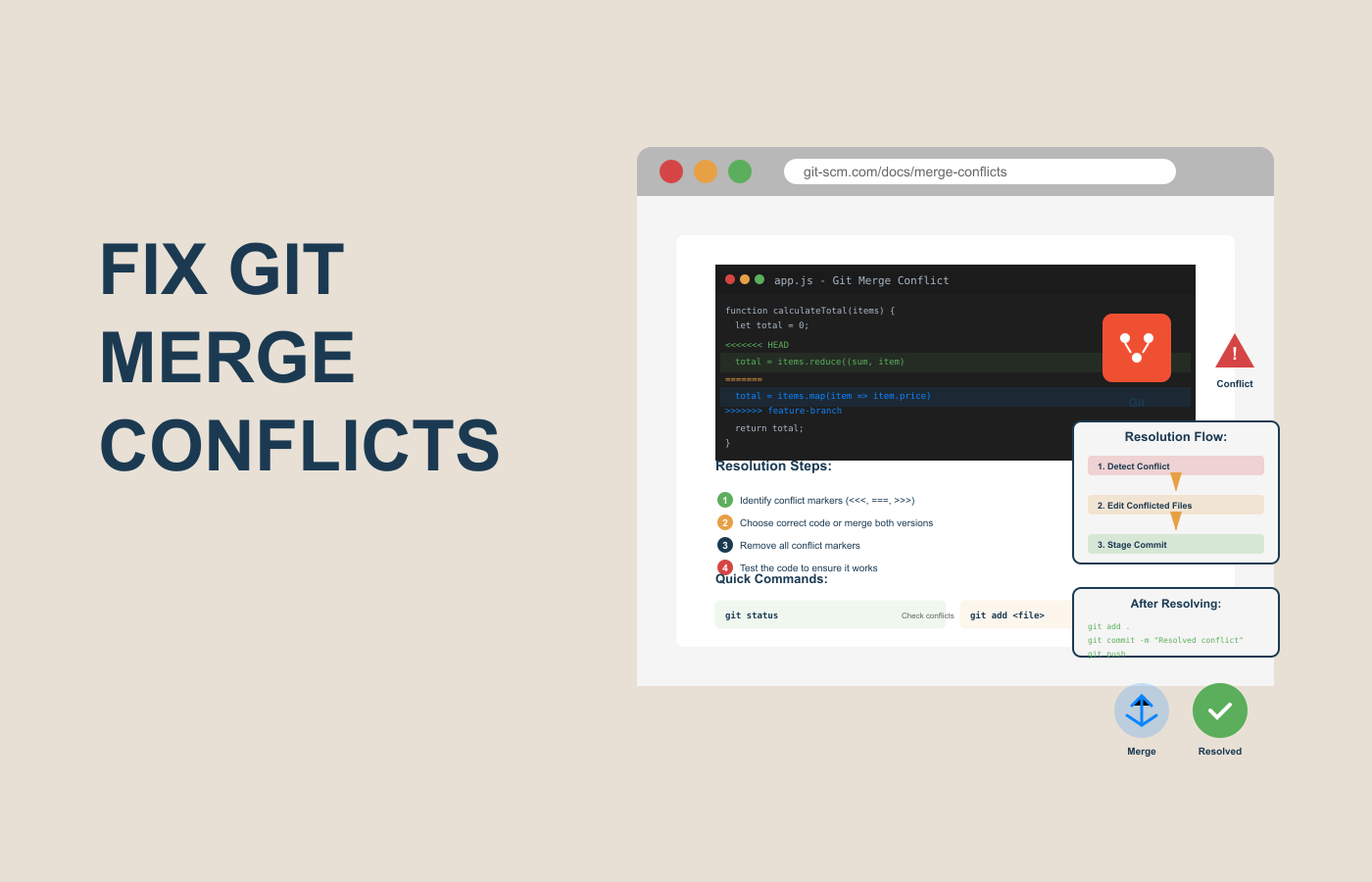
Why Git Merge Conflicts Matter
If you’ve ever worked on a team project using Git, you’ve probably seen the dreaded message:
“error: Merge conflict in file XYZ”
It’s one of those moments every developer faces — your code won’t merge, and panic sets in. Don’t worry — you’re definitely not alone.
Git Merge Conflicts are one of the most common hurdles developers encounter while collaborating on projects. Whether you’re working solo with multiple branches or in a large team with multiple contributors, these conflicts are inevitable.
But here’s the good news — fixing merge conflicts isn’t as scary as it looks. Once you understand why they happen and how Git handles them, you can solve them with confidence in just a few steps.
In this guide, you’ll learn:
- What Git merge conflicts are
- Why they occur
- Step-by-step methods to fix them
- Pro tips to avoid them in future
By the end, you’ll not only be able to resolve Git merge conflicts quickly but also understand how to prevent them before they even occur.
Why Git Merge Conflicts Happen
Git is smart — but it’s not psychic. It can automatically merge changes as long as they don’t overlap. The problem arises when two people change the same part of a file, or Git can’t decide which version to keep.
Let’s break it down simply
Common Reasons for Git Merge Conflicts
- Two developers edited the same line of code
- Example: You and your teammate both modify line 42 in
index.js. - Git can’t automatically decide whose version to keep.
- Example: You and your teammate both modify line 42 in
- A file was deleted in one branch but modified in another
- Example: You deleted
style.cssin your branch, but another developer updated it in theirs. - Git doesn’t know if it should restore or delete it.
- Example: You deleted
- Changes made to the same file structure
- Example: You rearranged folder structures or renamed files.
- Git struggles to match renamed or moved files automatically.
- Simultaneous merges from multiple branches
- When merging feature branches into
mainordevelop, overlapping changes can trigger conflicts.
- When merging feature branches into
Why It is important to know the solution for Git merge conflicts
Git merge conflicts might sound minor, but ignoring or incorrectly resolving them can:
- Break your build or production code
- Remove important updates from another developer
- Cause serious confusion in the repository history
Understanding why they happen helps you approach them calmly — because conflicts don’t mean you or your team did something wrong; they’re just Git’s way of saying:
“Hey, I need your help deciding which version to keep.”
Step-by-Step Guide: How to Fix Git Merge Conflicts
Now that you understand why Git merge conflicts occur, let’s learn how to fix them.
There are multiple ways to resolve conflicts — from using the command line to modern GUI tools like VS Code or GitHub Desktop.
Let’s go step-by-step with real examples
Step 1: Identify the Conflict
When you run a merge command like:
git merge feature-branch
Git will try to combine the changes from the feature-branch into your current branch.
If there’s a conflict, you’ll see something like this:
Auto-merging index.html
CONFLICT (content): Merge conflict in index.html
Automatic merge failed; fix conflicts and then commit the result.
This means Git couldn’t automatically merge one or more files.
Next Step: Check which files have conflicts.
Run this command:
git status
You’ll get output like:
both modified:   index.html
both modified:   style.css
These files are your problem spots — you need to fix them manually.
Step 2: Open and Review the Conflict
Now open one of the conflicted files (for example, index.html).
Git marks the conflicting areas clearly, like this:
<<<<<<< HEAD
<h1>Welcome to My Portfolio</h1>
=======
<h1>Welcome to Our Team Portfolio</h1>
>>>>>>> feature-branch
Let’s decode this:
<<<<<<< HEAD→ shows the current branch’s version.=======→ divides your version and the incoming one.>>>>>>> feature-branch→ shows the version from the branch you’re trying to merge.
You need to decide which version to keep — or combine both if necessary.
Step 3: Manually Resolve the Conflict
Now comes the hands-on part — fixing Git merge conflicts manually.
You have three options:
- Keep your version (
HEAD) - Keep the other branch’s version (
feature-branch) - Merge both versions manually
Example 1: Keeping your version
<h1>Welcome to My Portfolio</h1>
Example 2: Keeping their version
<h1>Welcome to Our Team Portfolio</h1>
Example 3: Combining both
<h1>Welcome to My Portfolio - Team Edition</h1>
Once you’ve resolved the conflict in that file, remove the Git markers (<<<<<<<, =======, >>>>>>>).
Then mark it as resolved using:
git add index.html
After you’ve done this for all conflicted files, finalize the merge with:
git commit
Git automatically opens your default text editor with a merge message. You can customize it or leave the default, then save and close.
Congratulations — you just resolved your first Git merge conflict!
Step 4: Verify Your Code Works (Optional but Crucial)
Even after resolving merge conflicts, it’s vital to test your code.
Run your application or project build command to ensure that:
- Nothing broke during the merge.
- No duplicate or missing lines exist.
For example:
npm run build
or
python manage.py runserver
This step saves you from future bugs and production headaches.
Real-World Example: Fixing a Conflict in a Team Project
Let’s say you and your teammate are working on a React app.
- You’re on
feature/homepageand change the<header>text. - Your teammate on
feature/ui-updatechanges the same header file.
When merging both branches into develop, you’ll get a merge conflict in Header.js.
Instead of panicking, open the file, choose which version (or both) to keep, and commit after testing.
Result: Both your and your teammate’s contributions are safely merged, with no overwritten work.
Step 5: Using Merge Tools to Resolve Git Merge Conflicts
Not everyone prefers editing conflict markers manually — and that’s totally fine.
Modern tools make resolving Git merge conflicts much easier and less error-prone.
Here are some of the most popular tools you can use
Using Visual Studio Code (VS Code)
VS Code is one of the best editors for resolving Git merge conflicts visually.
When you open a conflicted file in VS Code, it highlights the differences and provides three simple buttons:
- Accept Current Change — keeps your branch’s version.
- Accept Incoming Change — keeps the other branch’s version.
- Accept Both Changes — merges both pieces of code.
You can also compare side-by-side to decide what’s best.
Pro Tip:
If you often deal with merge conflicts, install the GitLens or Git Graph extension — they provide extra insights into who made each change and why.
Using GitHub Desktop
GitHub Desktop offers a beginner-friendly interface to fix merge conflicts.
Here’s how it works:
- Try to merge branches within the app.
- If a conflict appears, GitHub Desktop highlights the conflicted files.
- Click “Open in Editor” or “View Conflicts” to fix them.
- Choose which changes to keep and then click “Mark as Resolved.”
Finally, commit the merge and push it to GitHub — done!
Using Sourcetree
Sourcetree, a free Git GUI by Atlassian, also handles conflicts gracefully.
- It visually marks files with conflicts in red.
- You can launch a merge tool like Beyond Compare or Meld directly.
- Once resolved, mark the file as resolved and commit the merge.
Sourcetree is perfect for teams that prefer GUI over command-line operations.
Command Line Tools (Advanced)
If you’re a power user, Git also has a built-in merge tool.
You can launch it by typing:
git mergetool
It opens the merge interface (default varies by OS) and lets you manually review and edit changes.
Once you’re done, use:
git commit
to complete the process.
Pro Tip: You can configure your favorite visual diff tool as Git’s default merge tool by adding it to your .gitconfig file.
Step 6: How to Avoid Git Merge Conflicts Before They Happen
Wouldn’t it be great if we could prevent merge conflicts altogether?
While they can’t be eliminated 100%, you can significantly reduce them by following these best practices
1. Pull Changes Frequently
Before starting any new work, always pull the latest changes from your main branch.
git pull origin main
This ensures you’re working with the most up-to-date version of the codebase.
2. Communicate with Your Team
Many conflicts occur simply because two developers are editing the same file without realizing it.
Avoid this by:
- Assigning ownership for certain files or modules.
- Using task management tools (like Jira or Trello) to coordinate updates.
3. Keep Commits Small and Frequent
The smaller your commits, the easier it is to merge changes.
Avoid massive commits that touch dozens of files — they’re merge conflict magnets.
4. Use Feature Branches
Always create a new branch for every feature or bug fix:
git checkout -b feature/new-login-page
This isolates your work and keeps the main branch clean.
5. Rebase Instead of Merge (Sometimes)
If your branch has fallen behind main, consider rebasing:
git fetch origin
git rebase origin/main
Rebasing rewrites your commit history, keeping it linear and cleaner — reducing future merge headaches.
Note: Only rebase local branches that haven’t been pushed yet, to avoid conflicts with teammates
6. Use .gitattributes for Specific Merge Rules
You can create a .gitattributes file to tell Git how to handle certain files during merges.
For example, to automatically keep your version of a config file:
config/settings.json merge=ours
This prevents repetitive merge issues for files that shouldn’t be changed across branches.
Comparison Table: Manual vs Tool-Based Conflict Resolution
| Method | Ease of Use | Best For | Example Tools |
|---|---|---|---|
| Manual Editing | Moderate | Experienced developers comfortable with Git CLI | Command line |
| VS Code | Easy | Beginners & intermediate devs | VS Code, GitLens |
| GitHub Desktop | Very Easy | Beginners, small teams | GitHub Desktop |
| Sourcetree | Easy | Teams using Atlassian tools | Sourcetree |
| Merge Tools | Moderate | Visual diff enthusiasts | Meld, Beyond Compare |
You May Also Like : Fix Git Not Pushing to Repository: 2025 Guide
Pro Tips, Alternatives & Mistakes to Avoid
Even experienced developers make merge mistakes.
Here are some insider tips to handle them like a pro
Pro Tips
- Always review before committing — Never blindly “accept all changes.”
- Run your project after every merge — Test before pushing.
- Keep your
.gitignoreclean — Avoid merging unwanted system files. - Document merge policies — Agree on naming and branching rules as a team.
Common Mistakes to Avoid
- Deleting conflict markers without resolving them — This can break your code.
- Forgetting to test after merging — Leads to runtime errors later.
- Merging outdated branches — Always pull latest changes before merging.
FAQs About Git Merge Conflicts
1. What are Git merge conflicts in simple terms?
Git merge conflicts happen when two branches modify the same part of a file, and Git can’t decide which change to keep.
2. How do I know which files have conflicts?
Run git status — it lists all files that need manual resolution.
3. What’s the best tool to fix Git merge conflicts?
VS Code is beginner-friendly and shows clear visual options for resolving conflicts safely.
4. Can I avoid Git merge conflicts completely?
Not entirely — but by rebasing regularly, pulling updates often, and communicating with your team, you can minimize them.
5. What if I messed up the merge?
Don’t panic — run:
git merge --abort
This reverts your repository to the state before the merge.
Conclusion
Git merge conflicts might seem intimidating at first, but once you understand how they work, they’re just another part of your developer journey.
They teach collaboration, code ownership, and communication — three skills every great developer needs.
Next time you see the message “Merge conflict detected,” remember — it’s not an error; it’s a choice.
A chance to decide what stays and what goes.
So, whether you fix it manually, use VS Code, or rely on GitHub Desktop — follow these steps, stay calm, and keep your repository clean.
Try these tips today, and the next time you hit a Git merge conflict, you’ll fix it in minutes, not hours.
For more such solution check out rankweb3 blogs, we build content to solve problem faced by many users across globe in different technical fields. for any suggestions or issue you can send mail at info@rankweb3.com
#GitMergeConflicts #GitTutorial #VersionControl #DeveloperGuide #GitTips

One Response