
How to Fix Mac WiFi Not Connecting (Complete 2025 Guide)
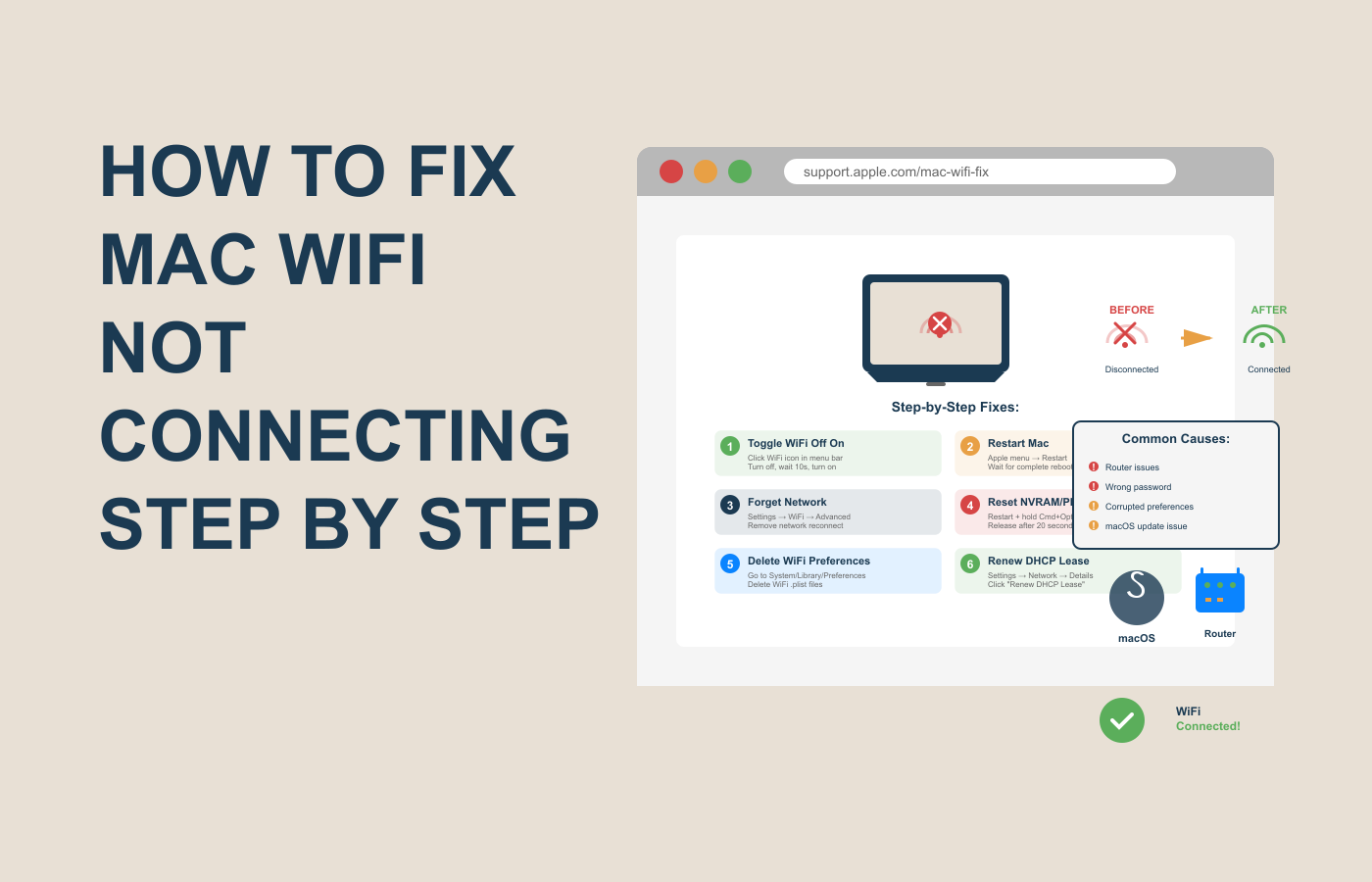
Have you ever opened your Mac, ready to work or stream your favorite show, only to find that the WiFi icon just won’t turn blue? You try reconnecting, toggling the switch, and even restarting — but nothing works. Frustrating, right?
You’re not alone. Many Mac users in 2025 still face this issue — Mac WiFi not connecting — despite Apple’s regular updates and advanced connectivity features.
But here’s the good news: you don’t need to be a tech expert to fix it.
By the end of this guide, you’ll know exactly how to troubleshoot and fix Mac WiFi problems — from simple quick fixes to advanced network settings.
Let’s get your Mac connected again!
Why Your Mac WiFi Isn’t Connecting (and Why It Matters)
Before we jump into fixes, it’s important to understand why your Mac might be refusing to connect.
In most cases, the issue isn’t your WiFi router — it’s how your Mac handles network settings, DNS, or cached connections.
Here are the most common reasons for Mac WiFi issues:
- Outdated macOS software
- Corrupted network settings or saved WiFi profiles
- Router or ISP (Internet Service Provider) issues
- Incorrect DNS configuration
- Firewall or VPN interference
- Hardware or SMC/NVRAM glitches
Pro Tip: WiFi problems on Mac often look the same on the surface but have different causes underneath. That’s why following a structured troubleshooting process works best.
Step-by-Step Fix: How to Fix Mac WiFi Not Connecting
Let’s go step-by-step through everything you can do to fix your WiFi and get your Mac online again.
Step 1: Check If It’s Really Your Mac
Before blaming your Mac, make sure the problem isn’t with the network itself.
Do this:
- Try connecting your phone or another device to the same WiFi.
- If other devices work fine, it’s likely your Mac.
- If none connect, your router or internet connection might be the issue.
Pro Tip: Restart your router. Unplug it for 30 seconds, plug it back in, and wait 2 minutes. It solves 50% of WiFi problems instantly.
Step 2: Turn WiFi Off and Back On
This may sound too simple — but toggling WiFi resets your network session and forces a fresh connection.
Steps:
- Click the WiFi icon in the top-right menu bar.
- Choose Turn WiFi Off.
- Wait for 10 seconds, then Turn WiFi On again.
- Try reconnecting to your network.
If this doesn’t work, move on to the next fix.
Step 3: Forget and Reconnect to the Network
Sometimes, saved WiFi networks store outdated credentials or settings that cause conflicts.
Here’s how to fix it:
- Go to System Settings → Network → WiFi.
- Click on Known Networks.
- Select your network and click Forget This Network.
- Now reconnect and re-enter the password.
Pro Tip: If you’re using multiple networks (home, work, public WiFi), clean up old ones. A cluttered list of saved networks can slow down Mac WiFi recognition.
Step 4: Restart Your Mac
It’s simple but often works. Restarting clears temporary caches and refreshes all system-level network processes.
- Click Apple Menu → Restart.
- After rebooting, try reconnecting to WiFi.
Common Mistake: Shutting the lid is not the same as restarting. A full reboot resets the background services your Mac relies on.
Step 5: Reset SMC and NVRAM (Advanced Fix)
If your Mac’s WiFi keeps disconnecting or won’t connect at all, a System Management Controller (SMC) or NVRAM reset can help.
For Intel Macs:
- Shut down your Mac.
- Hold Shift + Control + Option + Power for 10 seconds.
- Release all keys, then press Power again to restart.
For M1 or M2 Macs:
Just restart — the system automatically manages SMC and NVRAM resets.
Pro Tip: After resetting, reconnect to your WiFi manually and recheck DNS settings (see below).
Step 6: Renew DHCP Lease
If your Mac connects but doesn’t load websites, the problem might be your IP configuration.
Steps:
- Go to System Settings → Network → WiFi.
- Click Details → TCP/IP.
- Select Renew DHCP Lease.
This forces your Mac to get a fresh IP address from your router.
Step 7: Change DNS Settings
Sometimes your internet works fine but loads very slowly or disconnects often. That’s likely a DNS issue.
Fix it like this:
- Go to System Settings → Network → WiFi.
- Click Details → DNS.
- Add a new DNS server:
- 8.8.8.8 (Google DNS)
- 1.1.1.1 (Cloudflare DNS)
- Click OK, then reconnect.
Pro Tip: Google DNS often improves speed and stability. Many users fix WiFi connectivity instantly just by switching DNS.
Step 8: Turn Off VPN or Firewall
VPNs and firewalls can sometimes block your WiFi connection — especially after a recent software update.
Try this:
- Turn off your VPN.
- Go to System Settings → Network → Firewall and temporarily disable it.
- Try reconnecting to WiFi.
If it works, add your network as an exception in your firewall or VPN settings.
Common Mistake: Forgetting to update VPN software after macOS updates can cause invisible connection blocks.
Step 9: Update macOS
Apple frequently releases network-related bug fixes. Keeping your Mac updated ensures better compatibility.
To update:
- Go to System Settings → General → Software Update.
- Click Update Now if a new version is available.
Pro Tip: Always back up before updating — just in case.
Step 10: Create a New Network Location
If nothing else works, create a fresh “network profile” to reset all settings.
Steps:
- Go to System Settings → Network.
- Click the three dots (…) and choose Locations → Edit Locations.
- Click the + icon to add a new one (e.g., “Home 2.0”).
- Connect to your WiFi again.
This gives you a clean start without losing your other system settings.
Comparison Table: Quick Fixes for Different Scenarios
| Issue Type | Possible Cause | Quick Fix |
|---|---|---|
| WiFi not showing | SMC/NVRAM glitch | Reset SMC/NVRAM |
| WiFi connected but no internet | DNS/IP issue | Change DNS / Renew DHCP |
| WiFi disconnects often | Network profile error | Forget and reconnect network |
| WiFi slow | Router interference | Restart router / Change DNS |
| All devices offline | Router or ISP issue | Contact your internet provider |
Pro Tips from Experience
After helping multiple Mac users troubleshoot WiFi issues, here are some insider lessons:
Always start simple. 70% of WiFi issues are solved by restarting the router or Mac.
Keep a mobile hotspot handy. It helps test whether your Mac’s hardware is fine.
Avoid public WiFi when possible. These often have hidden restrictions that confuse macOS.
Use Ethernet when updating macOS. It ensures a stable connection during updates.
Back up network settings before major macOS upgrades.
FAQs About Mac WiFi Not Connecting
1. Why does my Mac say “No WiFi hardware installed”?
This usually happens after a system crash or SMC error. Resetting SMC or restarting your Mac can fix it.
2. How do I fix WiFi connected but not loading pages?
Try changing DNS to Google (8.8.8.8) or Cloudflare (1.1.1.1) and renew your DHCP lease.
3. Can outdated software cause WiFi issues on Mac?
Yes. macOS updates often include WiFi driver patches. Always stay updated.
4. Why does my WiFi drop after sleep mode?
That’s often due to power-saving settings. Disable “Wake for network access” in Energy Saver preferences.
5. Should I reset my router settings?
If other devices also face issues, yes — resetting your router can solve network-level problems.
You May Also Like to See : How to Fix Mac WiFi Not Connecting (Complete 2025 Guide)
Conclusion: Stay Connected, Stay Productive
When your Mac WiFi isn’t connecting, it’s easy to panic — but in most cases, it’s a small fix away.
Here’s what to remember:
Check router and other devices first.
Reconnect or forget the WiFi network.
Reset DNS, SMC, or create a new network location if needed.
Keep your macOS updated regularly.
The key is patience — try these steps in order, and your Mac will be back online before you know it.
So go ahead, apply these fixes today — and wave goodbye to frustrating “WiFi not connecting” errors for good.
Where can I learn more about Mac troubleshooting?
Visit Apple’s support page for detailed guides: Apple Support.
About the Author:
Written by Meraj, a digital marketing and SEO blogger who helps readers solve tech problems and optimize their digital workflow through practical, experience-based guides.
#MacTips #WiFiTroubleshooting #AppleSupport #TechGuide #MacWiFi

One Response