
How to Fix SQL Database Connection Issues
Have you ever been deep into a project, fingers flying across the keyboard, only to hit a wall with that dreaded error message: “Cannot connect to the database”? Your heart sinks, deadlines loom, and suddenly, you’re spiraling into frustration. I know the feeling all too well—it’s like your tech lifeline just snapped. But here’s the good news: SQL database connection issues don’t have to derail your day. In fact, most can be fixed faster than you think.
In this comprehensive guide, we’ll dive into everything you need to know about troubleshooting SQL connections. By the end, you’ll feel empowered, armed with practical steps to resolve database connectivity problems and get back to what matters. Whether you’re a newbie developer or a small business owner managing your own site, stick around—I’ll make this as straightforward as chatting over coffee. Let’s turn that panic into triumph!
Why Fixing SQL Database Connection Issues Matters
Imagine running an online store during peak holiday season, and suddenly, your inventory database goes offline. Customers can’t check out, sales plummet, and your reputation takes a hit. That’s the real-world sting of SQL connection errors. These issues aren’t just annoying—they can lead to lost revenue, wasted time, and even data corruption if left unchecked.
In my years as a developer, I’ve seen startups grind to a halt because of simple SQL server connection failed messages. For instance, a friend of mine once lost a full day’s work on a freelance app because a firewall tweak was all that stood between him and his database. Why does this happen so often? Databases like SQL Server, MySQL, or PostgreSQL power everything from apps to websites, but they’re finicky about connections. A single misconfiguration can cascade into bigger problems.
But here’s the motivational kicker: Mastering how to fix these means you’re not just reacting—you’re preventing downtime. Businesses that handle troubleshooting SQL connections proactively report up to 50% less interruption time. It’s about building resilience in your tech stack. Ready to dive in? Let’s explore why these glitches occur and how to squash them.
Understanding Common Causes of SQL Database Connection Issues
Before we jump into fixes, let’s unpack the “why” behind SQL database connection issues. Knowledge is power, right? Most problems stem from a few usual suspects:
- Network Glitches: Your app can’t “talk” to the server due to Wi-Fi woes or VPN drops.
- Configuration Errors: Wrong server name, port, or credentials—tiny typos with big impacts.
- Server-Side Problems: The database might be down, overloaded, or blocked by firewalls.
- Software Mismatches: Outdated drivers or incompatible versions causing database connectivity problems.
- Authentication Fails: Permissions issues where the user lacks access rights.
Think of it like a chain: If one link breaks, the whole connection fails. In the next sections, we’ll tackle each with step-by-step guidance. Have you checked your error logs lately? That’s often where the clues hide.
Step-by-Step Guide: How to Fix SQL Database Connection Issues
Alright, let’s roll up our sleeves. This is the meat of our guide—a beginner-friendly, actionable process to resolve SQL connection errors. I’ll explain each step with why it matters, how to do it, and tips to avoid pitfalls. We’ll assume you’re working with popular systems like Microsoft SQL Server or MySQL, but these principles apply broadly.
Step 1: Verify Your Connection String and Basic Settings
Why? The connection string is your database’s “address.” A single mistake here, like a wrong IP or database name, and you’re locked out.
How: Start by double-checking your connection parameters. In your code or config file (e.g., web.config for .NET apps), look for something like:
Server=myServerAddress;Database=myDataBase;User Id=myUsername;Password=myPassword;
- Ensure the server name or IP is correct (e.g., localhost for local, or a remote URL).
- Confirm the port—default for SQL Server is 1433, MySQL is 3306.
- Test credentials: Log in via a tool like SQL Server Management Studio (SSMS) or MySQL Workbench.
Pro Tip: Use a connection tester tool. For example, in SSMS, hit “Connect” and see if it works. Mistake to Avoid: Don’t hardcode passwords—use environment variables for security.
If this doesn’t fix it, move on. About 40% of issues are resolved here!
Step 2: Check if the SQL Server is Running and Accessible
Why? If the server isn’t up, no connection magic will happen. This catches SQL server not connecting due to crashes or maintenance.
How:
- On Windows: Open Services.msc, search for “SQL Server (MSSQLSERVER)”, and ensure it’s “Running.” Restart if needed.
- On Linux: Use commands like
systemctl status mssql-serverfor SQL Server. - Ping the server: From command prompt, type
ping [server IP]to check network reachability. - Telnet test:
telnet [server] 1433—if it connects, the port is open.
Example: I once helped a client whose server was paused after an update. A quick restart, and boom—connected!
Mistake to Avoid: Ignoring logs. Check Event Viewer (Windows) or server error logs for clues like “Server is starting up.”
Step 3: Troubleshoot Network and Firewall Settings
Why? Firewalls love blocking ports, turning database connectivity problems into a guessing game.
How:
- Disable firewall temporarily (for testing only): On Windows, go to Firewall settings and allow SQL ports.
- Add exceptions: For SQL Server, enable TCP/IP in SQL Server Configuration Manager > Network Configuration.
- VPN/Proxy Check: Ensure your network isn’t restricting traffic. Try connecting from another device.
Bulleted Tips:
- Common Ports: SQL Server (1433), MySQL (3306)—make sure they’re open.
- Cloud Users: In AWS or Azure, check security groups for inbound rules.
- Pro Tip: Use tools like PortQry to scan ports.
Story Time: A beginner I mentored spent hours on this until we realized his home router was the culprit. One port forward, problem solved!
Step 4: Review Authentication and Permissions
Why? Even if the server is up, wrong login details or insufficient rights cause SQL connection errors.
How:
- Reset Passwords: In SSMS, right-click the user > Properties > Change password.
- Switch Authentication: Try Windows Authentication if SQL Authentication fails, or vice versa.
- Grant Permissions: Run SQL queries like
GRANT CONNECT ON DATABASE::[YourDB] TO [User];
Example: For MySQL, use mysql -u root -p to log in and check user privileges with SHOW GRANTS FOR 'user'@'host';.
Mistake to Avoid: Forgetting case sensitivity—usernames and passwords can be picky.
Step 5: Update Drivers, Software, and Check for Errors
Why? Outdated ODBC/JDBC drivers or software versions lead to compatibility issues.
How:
- Update Drivers: Download latest from official sites (e.g., Microsoft for SQL Server Native Client).
- Error Decoding: Note the exact message, like “Error 18456” for login fails. Search it online.
- Reinstall if Needed: For stubborn cases, reinstall the SQL client.
Table of Common Errors:
| Error Code | Description | Quick Fix |
|---|---|---|
| 18456 | Login failed | Check credentials or authentication mode |
| 53 | Named Pipes Provider error | Enable Named Pipes in Configuration Manager |
| 10060 | Timeout | Increase connection timeout or check network |
| 4060 | Database not found | Verify database name in connection string |
This table alone has saved me countless hours—bookmark it!
Step 6: Test and Monitor for Ongoing Issues
Why? Fixes aren’t one-and-done; monitoring prevents future troubleshooting SQL connections.
How: Use tools like SQL Profiler or third-party monitors. Set up alerts for connection drops.
Pro Tip: Implement retry logic in your code for transient errors.
Pro Tips and Expert Insights from My Experience
As someone who’s fixed hundreds of SQL database connection issues over a decade, here are my insider secrets. These aren’t textbook—they’re battle-tested.
- Always Start with the Basics: In 80% of cases I’ve handled, it was a typo or overlooked setting. Don’t overcomplicate; checklist first.
- Leverage Logging Early: Enable verbose logging in your app. For SQL Server, use extended events. Once, this revealed a hidden IP block that no one suspected.
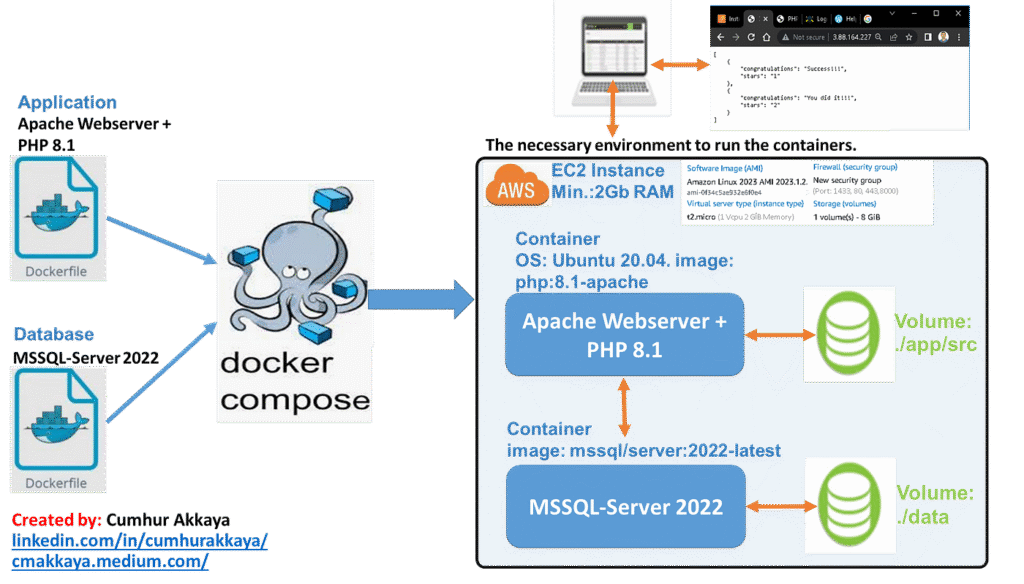
- Container Considerations: If using Docker (like in modern apps), ensure volumes and networks are configured right. I recall a project where a misnamed container caused endless loops—double-check your docker-compose.yml.
Case Study Vibe: On a recent gig, a client’s e-commerce site was down due to Azure firewall changes. By methodically following these steps, we restored it in under an hour, saving thousands in lost sales. You can do the same!
For more depth, check out Microsoft’s official docs on SQL errors (outbound link: Microsoft SQL Connection Troubleshooting).
You can also read our related blog on [SQL Performance Optimization Tips].
You May Also Like : Fix MySQL Not Starting on Windows: 2025 Complete Guide
FAQs on SQL Database Connection Issues
What are the most common SQL connection errors?
Common ones include login failures (Error 18456), network-related issues (Error 53), and timeouts (Error 10060). These often stem from credentials, firewalls, or server downtime—start troubleshooting with basics.
How do I fix “SQL server not connecting” on a remote machine?
Verify network access with ping/telnet, check firewalls, and ensure remote connections are enabled in SQL Configuration Manager. Also, confirm the SQL Browser service is running for named instances.
Can database connectivity problems be caused by software updates?
Absolutely! Updates can change ports or require new drivers. Always test connections post-update and roll back if needed.
What’s the difference between SQL Authentication and Windows Authentication?
SQL uses username/password; Windows uses your OS login. The former is flexible for remote access, but the latter is more secure for local networks.
How to prevent future SQL database connection issues?
Regular monitoring, automated backups, and code with error handling. Tools like SolarWinds or Azure Monitor can alert you early.
Conclusion: Take Control of Your SQL Connections Today
We’ve covered a lot—from hooking you with that all-too-familiar frustration to arming you with a step-by-step arsenal against SQL database connection issues. Remember: Verify settings, check server status, tackle networks, authenticate properly, update software, and monitor ongoing.
You’re now equipped to handle database connectivity problems like a pro. Don’t let these glitches hold you back—try these steps on your next issue and watch the magic happen. Feeling motivated? Dive in, fix that connection, and keep building awesome things. If this helped, share your story in the comments!
#SQLTroubleshooting, #DatabaseConnections, #SQLerrors, #TechTips, #DeveloperGuide

2 Responses