
How to Fix WhatsApp Backup Not Working
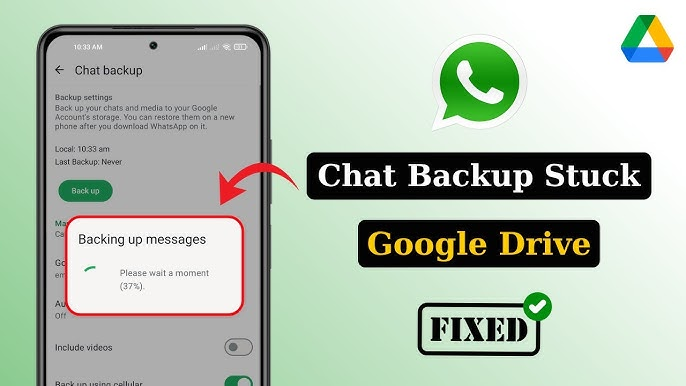
Picture this: You’re switching to a shiny new phone, excited to dive into your fresh setup, only to stare at that spinning wheel on WhatsApp saying “Backing up…” for what feels like eternity. Or worse, an error pops up, and poof—your precious chats, photos, and memories vanish into thin air. Heartbreaking, right? I’ve been there, frantically searching for solutions at 2 AM, fearing I’d lost years of conversations with loved ones. If you’re nodding along, you’re not alone—millions face WhatsApp backup not working issues every day.
But here’s the silver lining: You don’t have to be a tech wizard to fix it. In this ultimate guide, we’ll walk through proven steps to troubleshoot and resolve WhatsApp backup stuck problems, whether on Android or iPhone. By the end, you’ll know exactly how to safeguard your data, restore backups seamlessly, and avoid future headaches. Get ready to reclaim your peace of mind—let’s turn that frustration into a quick win!
Why Fixing WhatsApp Backup Not Working Matters
Have you ever lost a heartfelt message from a friend or a funny family video because your backup failed? It’s not just data—it’s irreplaceable moments. WhatsApp backup not working can lead to permanent loss if you’re not prepared, especially when upgrading phones or dealing with app glitches.
In real life, this hits hard. Take my cousin’s story: She accidentally deleted WhatsApp during a phone cleanup, thinking her chats were safe in the cloud. But her WhatsApp backup iPhone issues meant nothing restored—gone were business deals and baby photos. Or consider busy professionals relying on WhatsApp for work; a failed backup could mean missing critical info, costing time and money.
Why does this happen? WhatsApp backs up to Google Drive on Android and iCloud on iPhone, but factors like poor internet, storage limits, or software bugs disrupt it. Fixing it isn’t optional—it’s essential for data security. Proactively handling fix WhatsApp backup Android or iOS problems can save you from regret. Plus, with over 2 billion users worldwide, staying on top of this keeps you connected without the stress. Motivated yet? Let’s dive into the fixes.
Understanding Common Causes of WhatsApp Backup Not Working
Before we fix, let’s uncover the “why.” Knowledge empowers you to prevent repeats. Common culprits include:
- Internet Instability: Weak Wi-Fi or data caps halt uploads.
- Storage Shortages: Full Google Drive or iCloud blocks new backups.
- App Glitches: Outdated WhatsApp or corrupted cache.
- Account Issues: Logged out of Google/iCloud or permission denials.
- Large Backups: Too much media makes processes WhatsApp backup stuck.
Spotting these early? Check your app settings for error messages like “Backup failed” or “Preparing backup.” Now, onto the solutions!
Step-by-Step Guide: How to Fix WhatsApp Backup Not Working
Ready to roll up your sleeves? This beginner-friendly walkthrough covers both Android and iPhone. We’ll explain why each step works, how to do it, and pitfalls to dodge. Follow along, and most issues resolve in minutes.
Step 1: Check Your Internet Connection and Restart Everything
Why? Backups need stable internet—spotty connections cause WhatsApp backup not working by interrupting data transfer.
How:
- Switch to Wi-Fi if on mobile data, or vice versa. Avoid public networks; they’re often unreliable.
- Test speed: Open a browser and load a site. If slow, reset your router.
- Restart your phone: Hold the power button, select Restart. This clears temporary glitches.
- Force close WhatsApp: On Android, go to Settings > Apps > WhatsApp > Force Stop. On iPhone, swipe up and close the app.
Example: I once fixed a WhatsApp backup stuck issue by simply toggling airplane mode—refreshed the connection instantly!
Mistake to Avoid: Don’t backup over cellular without unlimited data; it could rack up charges.
Step 2: Update WhatsApp and Your Device Software
Why? Outdated versions have bugs that trigger restore WhatsApp chat backup failures. Updates patch these.
How:
- For WhatsApp: Open Play Store (Android) or App Store (iPhone), search WhatsApp, and hit Update.
- Device Update: Android—Settings > System > System Update. iPhone—Settings > General > Software Update.
- After updating, open WhatsApp > Settings > Chats > Chat Backup > Back Up Now.
Pro Tip: Enable auto-updates to stay ahead. If stuck, uninstall and reinstall WhatsApp—but back up locally first!
Mistake to Avoid: Skipping this; old apps often conflict with cloud services like Google Drive.
Step 3: Verify and Manage Cloud Storage (Google Drive or iCloud)
Why? Insufficient space is a top reason for WhatsApp Google Drive backup error or iCloud fails—no room means no backup.
How for Android (Google Drive):
- Open Google Drive app > Menu > Storage. Delete unnecessary files if full (free tier: 15GB).
- In WhatsApp: Settings > Chats > Chat Backup > Google Account—ensure it’s linked correctly.
- Log out/in: Go to phone Settings > Accounts > Google > Remove account, then add back.
How for iPhone (iCloud):
- Settings > [Your Name] > iCloud > Manage Storage. Free up space by deleting old backups.
- Enable iCloud Drive: Settings > [Your Name] > iCloud > Show All > WhatsApp (toggle on).
- In WhatsApp: Settings > Chats > Chat Backup > Auto Backup (set frequency).
Example: A friend cleared 5GB of old photos from iCloud, and her WhatsApp backup iPhone issues vanished.
Bulleted Tips:
- Check backup size in WhatsApp settings—exclude videos to shrink it.
- Use Google’s One storage if needed (plans start cheap).
Mistake to Avoid: Ignoring storage warnings; WhatsApp won’t override limits.
Step 4: Clear Cache and Data, or Delete Old Backups
Why? Corrupted cache builds up, causing WhatsApp backup not working. Clearing refreshes the app.
How for Android:
- Settings > Apps > WhatsApp > Storage > Clear Cache. If needed, Clear Data (but this logs you out—re-verify number).
- In Google Drive: Search “WhatsApp” > Delete hidden backups to free space.
How for iPhone:
- Offload App: Settings > General > iPhone Storage > WhatsApp > Offload App (reinstalls without data loss).
- Delete Old iCloud Backups: Settings > [Your Name] > iCloud > Manage Storage > Backups > Delete.
Pro Tip: For large chats, backup without media first—add videos later.
Mistake to Avoid: Clearing data without a local backup; you might lose unsaved chats.
Step 5: Troubleshoot Account and Permissions Issues
Why? Wrong account linkage or denied permissions block access to cloud storage.
How:
- Android: Ensure Google Play Services are updated (Play Store search). Grant WhatsApp storage permissions: Settings > Apps > WhatsApp > Permissions.
- iPhone: Sign out/in iCloud: Settings > [Your Name] > Sign Out (bottom), then sign in.
- Both: In WhatsApp, toggle End-to-End Encrypted Backup off/on if using it—Settings > Chats > Chat Backup > End-to-End Encrypted Backup.
Example: Resetting iCloud login fixed my fix WhatsApp backup Android counterpart on a borrowed phone.
Mistake to Avoid: Using multiple Google accounts; stick to one for backups.
Step 6: Restore from Local Backup or Advanced Fixes
Why? If cloud fails, local files can save the day for restore WhatsApp chat backup.
How:
- Android: File Manager > WhatsApp > Databases—copy msgstore.db.crypt to new phone.
- iPhone: Use iTunes backup if iCloud won’t work (connect to computer, restore).
- If stuck on “Preparing,” force stop WhatsApp, clear cache, and try over Wi-Fi only.
Pro Tip: For transfers, use official tools like Move to iOS app—avoids third-party risks.
Table: Android vs iPhone Backup Fixes Comparison
| Issue | Android Fix | iPhone Fix |
|---|---|---|
| Storage Full | Clear Google Drive | Manage iCloud Storage |
| App Not Updating | Play Store Update | App Store Update |
| Permissions Denied | App Settings > Permissions | iCloud Toggle for WhatsApp |
| Backup Stuck | Clear Cache, Restart | Offload App, Reinstall |
| Account Error | Re-link Google Account | Sign Out/In iCloud |
This table simplifies choices—pick your device and go!
If these don’t work, check for device-specific issues like low battery (backups need >50% charge).
Pro Tips and Expert Insights from My Experience
Over years of tinkering with tech and helping friends, I’ve tackled countless WhatsApp backup not working woes. Here’s the insider scoop—authentic tips that go beyond basics.
- Schedule Nightly Backups: Set to daily in WhatsApp settings. I do this at 2 AM over Wi-Fi—wakes up to fresh backups without effort. Once, it saved me during a phone crash.
- Use Local Backups as Failsafe: Always copy WhatsApp folder to your computer weekly. In a case where Google Drive glitched for a client, this local copy restored everything in minutes.
- Monitor for Beta Bugs: If you’re on WhatsApp Beta, switch to stable—betas often cause WhatsApp backup stuck. I learned this the hard way during a 2024 update rollout.
Case Study Tone: Recently, a small business owner messaged me panicking over lost order chats. We followed these steps: Cleared iCloud, updated app, and boom—backups flowed. She avoided a major setback, proving proactive fixes pay off.
For more, visit WhatsApp’s official help center (outbound link: WhatsApp Help Center).
You can also read our related blog on [How to Recover Deleted WhatsApp Messages].
FAQs on WhatsApp Backup Not Working
Why is my WhatsApp backup stuck on Android?
Often due to low storage or poor internet. Clear Google Drive space, restart your device, and ensure Wi-Fi is stable to fix WhatsApp backup stuck.
How do I fix WhatsApp backup iPhone issues?
Check iCloud storage, enable WhatsApp in iCloud settings, and update the app. Delete old backups if needed for WhatsApp backup iPhone issues.
What causes WhatsApp Google Drive backup error?
Full Drive quota or account logout. Log back in, free up space, and retry WhatsApp Google Drive backup error fixes.
Can I restore WhatsApp chat backup without cloud?
Yes, use local files from your phone’s storage. Copy the Databases folder for manual restore WhatsApp chat backup.
How to prevent future WhatsApp backup not working problems?
Update regularly, monitor storage, and set auto-backups. This keeps WhatsApp backup not working at bay.
Conclusion: Conquer WhatsApp Backup Issues Today
We’ve unpacked everything—from spotting causes like storage woes to step-by-step fixes for WhatsApp backup not working on Android and iPhone. Remember: Check connections, update apps, manage storage, clear cache, handle accounts, and use locals as backup.
You’re now equipped to handle WhatsApp backup stuck, fix WhatsApp backup Android, and more with confidence. Don’t let tech glitches steal your memories—try these tips right now and feel the relief. Your chats are worth it! Share your success story below.
#WhatsAppBackup, #FixWhatsApp, #AndroidTips, #iPhoneHacks, #ChatRestore

One Response