
WordPress Stuck in Maintenance Mode – Easy Fix to Get Your Site Back Online in 2026
You refresh your WordPress site after an update…
And there it is: “Briefly unavailable for scheduled maintenance. Check back in a minute.”
You wait a minute. Refresh. Still there.
10 minutes. An hour. Your site is frozen—visitors see the message, you can’t log in.
Panic hits. “Is my site broken forever? Did the update fail?”
Have you ever felt that helpless dread, watching your online business or blog stuck in limbo because WordPress is trapped in maintenance mode?
I’ve been there—updating a client’s high-traffic site, and the “briefly unavailable” message lingered for hours. Traffic plummeting. Client calling.
10 minutes later → site live.
Here’s the reassuring truth in 2026: WordPress stuck in maintenance mode is almost always a tiny leftover file—and fixed in under 10 minutes.
In this beginner-friendly guide, we’ll cover why it happens and easy fixes via FTP, hosting panel, plugins. By the end, your site will load normally. Let’s free your WordPress—you’ve got this!
Why WordPress Stuck in Maintenance Mode Matters More Than You Think
Maintenance mode protects your site during updates—hiding changes from visitors.
But when stuck, your site is offline to everyone. Traffic drops. Sales stop. SEO suffers.
In 2026, with WordPress powering 43% of the web, stuck maintenance hits thousands daily from interrupted updates.
Mini story: A blogger lost ad revenue for a day—stuck after auto-update. Deleted one file → back online → earnings recovered. Why matters? Your site is your livelihood, voice, passion. Fixing quickly keeps it accessible. Ready to remove that message?
What Causes WordPress to Get Stuck in Maintenance Mode
WordPress creates a hidden .maintenance file during updates. It deletes automatically when finished.
If interrupted (crash, timeout, connection loss), the file stays—trapping your site.
Other causes:
- Slow hosting.
- Plugin conflicts.
- Large updates timing out.
Step-by-Step: Easy Fix for WordPress Stuck in Maintenance Mode
Most fix by step 2—no coding needed.
Step 1: Wait a Few Minutes and Refresh
Why? Sometimes updates finish slowly.
How:
Wait 5–10 minutes → hard refresh (Ctrl + F5).
Still stuck? → Continue.
Step 2: Delete the .maintenance File via FTP (The #1 Fix)
Why? This file triggers the message—deleting ends maintenance.
How:
- Download FileZilla (free FTP client).
- Get credentials from hosting (cPanel → FTP Accounts).
- Connect → go to root folder (public_html or wordpress).
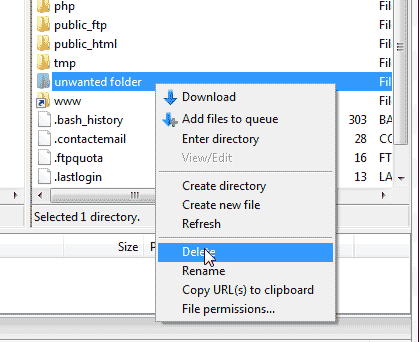
- Find .maintenance (show hidden files: Server → Force showing hidden).
- Right-click → Delete.
- Refresh site.
Pro Tip: Backup the file first (download copy).
Step 3: Delete via Hosting File Manager
Why? No FTP needed.
How (cPanel):
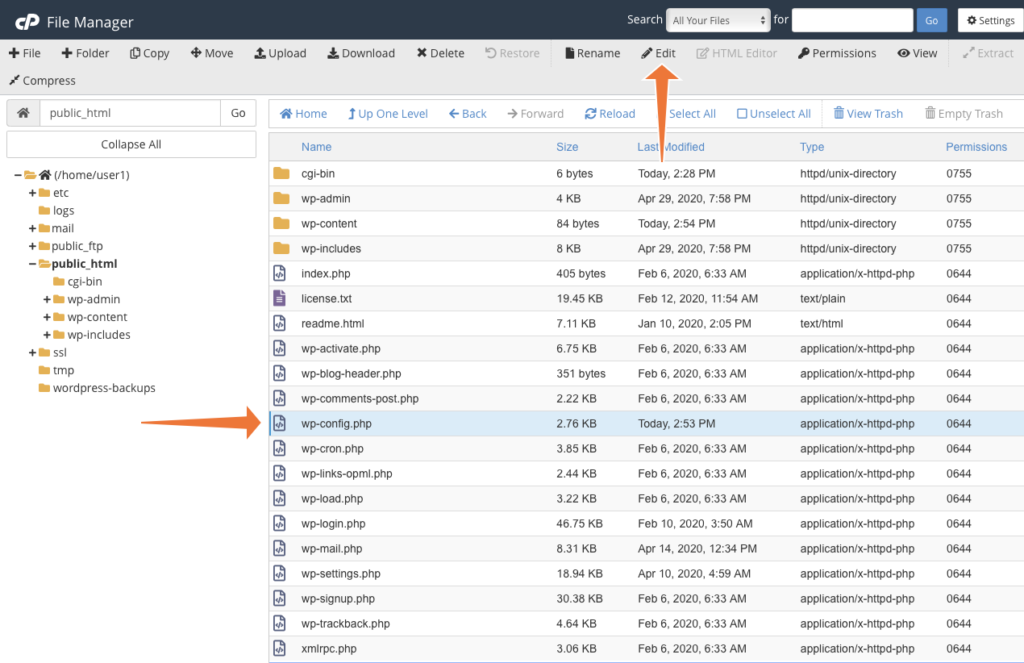
- Login to cPanel.
- File Manager → public_html.
- Settings → Show Hidden Files.
- Find .maintenance → right-click → Delete.
Other hosts: Similar in hPanel, Plesk.
Step 4: Use a Plugin to Manage Maintenance
Why? Prevent future stuck modes.
How:
Install WP Maintenance Mode or Coming Soon Page.
→ Custom page + avoids .maintenance issues.
Step 5: Advanced Fixes
Why? Rare deeper problems.
How:
- Rename plugins folder → test.
- Increase PHP timeout in wp-config.php:
set_time_limit(300);
- Contact hosting—server timeout.
Table: Methods Comparison 2026
| Method | Difficulty | Tools Needed | Time |
|---|---|---|---|
| FTP Delete | Easy | FileZilla | 5 min |
| File Manager | Easiest | Hosting login | 3 min |
| Plugin | Easy | WP Admin | 2 min |
| Manual Code | Advanced | Editor | 10 min |
Pro Tips and Expert Insights
From years managing sites:
- Never interrupt updates — wait fully.
- Use staging sites — test updates safely.
- Story: Client’s store stuck during Black Friday—deleted .maintenance via phone app → sales saved.
Outbound: WordPress support (wordpress.org/support/article/maintenance-mode/).
Internal: See our [Fix WordPress White Screen] guide.
FAQs on WordPress Stuck in Maintenance Mode
Why does WordPress get stuck in maintenance?
Interrupted update leaves .maintenance file.
Can I access admin panel?
Usually yes—try /wp-admin.
Safe to delete .maintenance?
100% safe—WordPress recreates when needed.
Stuck after plugin update?
Deactivate plugin via FTP.
How to avoid?
Use reliable hosting + manual updates.
Conclusion: Your Site Is Live Again
We’ve covered waiting, deleting .maintenance via FTP/manager, plugins, advanced tweaks.
Key takeaways: Find/delete .maintenance file first, prevent with tools.
You now fix WordPress stuck in maintenance mode anytime.
Try one step — check for .maintenance right now.
In minutes, your site will welcome visitors.
No more “briefly unavailable.”
No more lost traffic.
Just your thriving WordPress site.
Go delete that file — and watch your site return!
#WordPressMaintenance #StuckMaintenance #WordPressFix #SiteDown #WPError
